

KCEX Invitation Dashboard Usage Guide
2026-05-13 13:15:31
Dear KCEX Users,
Welcome to the KCEX Invitation Dashboard User Guide. Invite your friends to join KCEX, explore our trading market together, and earn up to 100% rebate on each transaction during the event period. At KCEX, we not only provide a secure and efficient trading platform, but also offer win-win opportunities for you and your referrals. This guide will walk you through how to effectively use the KCEX Invitation Dashboard to maximize your rebate benefits.
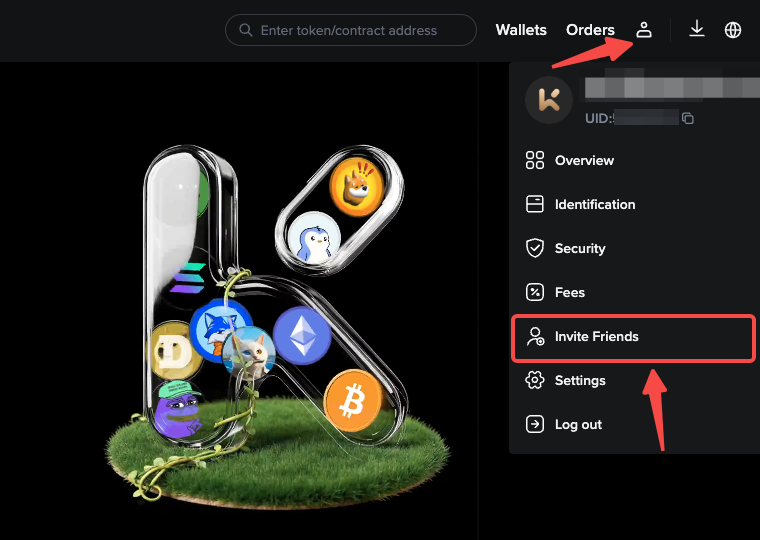
First, log in to the KCEX platform, click "Personal Center" in the upper right corner, and select "Invite Friends" to enter the KCEX Invitation Dashboard.
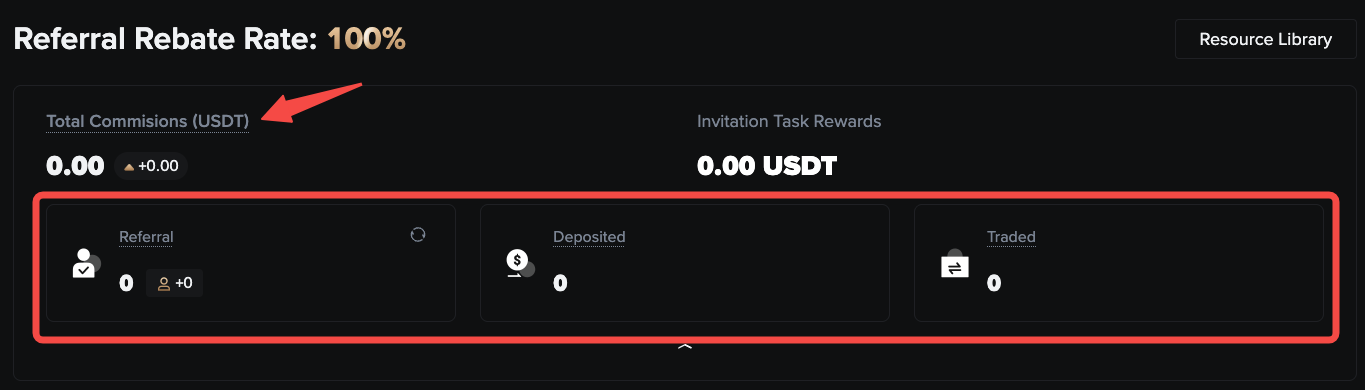
Dashboard Overview:
At the top section of the dashboard page, you can view your total accumulated commissions, as well as the number of referrals, verified depositors, and users who have completed transactions.
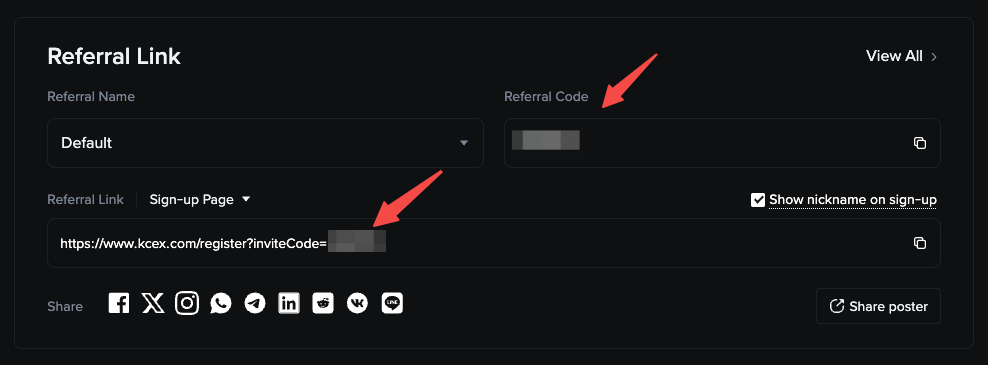
- Referral Link Management Area:
At KCEX, every user will receive an exclusive invitation link. You may use the default invitation link or a custom one you create to invite friends to join our platform. In addition, for easy sharing, you can also generate a dedicated QR code. Your friends can join effortlessly by simply scanning the code and enjoy the benefits of trading alongside you.
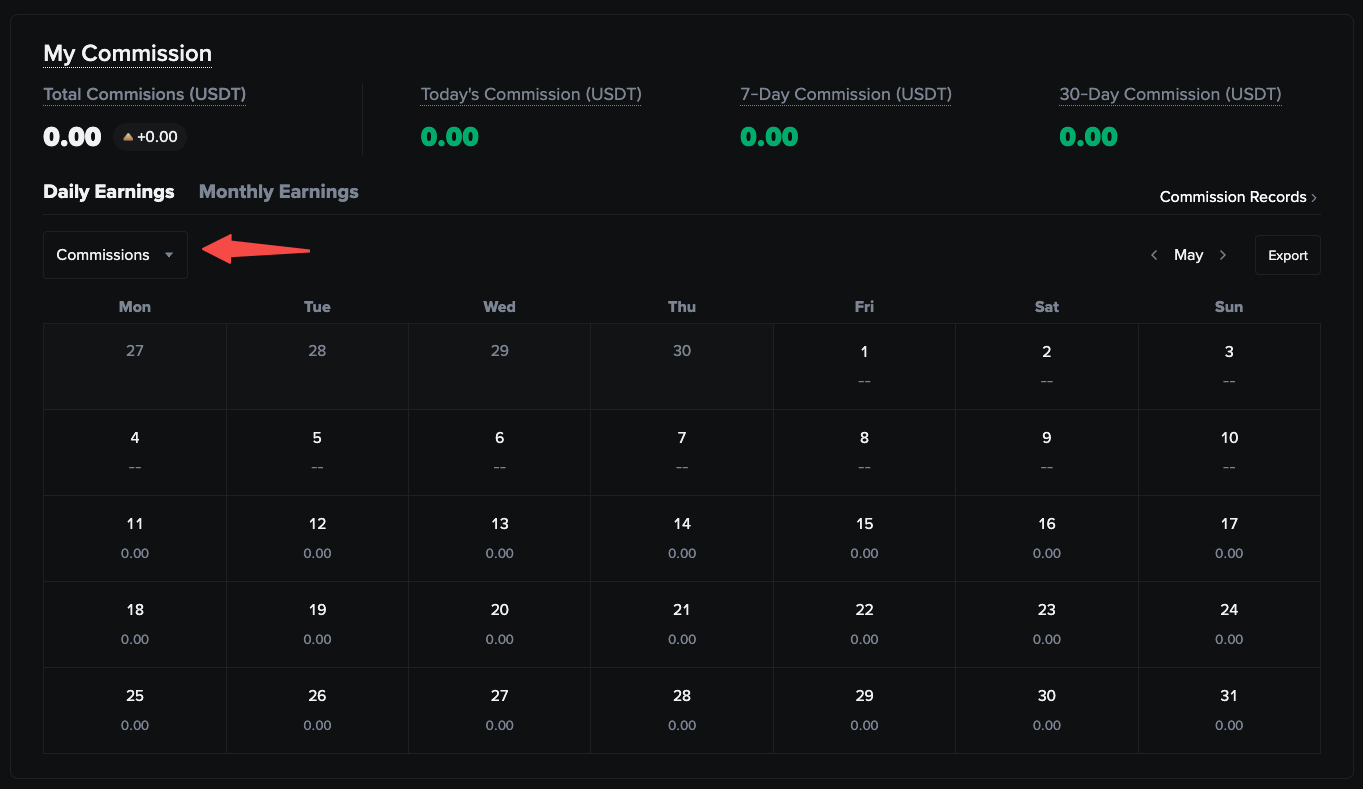
- My Commission:
In this section, you can fully view your daily and monthly earnings. Commission income is displayed by default, and you may click the dropdown menu to check metrics including the number of invites, depositors and traders. These data help you track performance trends and optimize your promotion strategies. In addition, you can use the export function to save the data for further analysis and reporting.
My Performance:
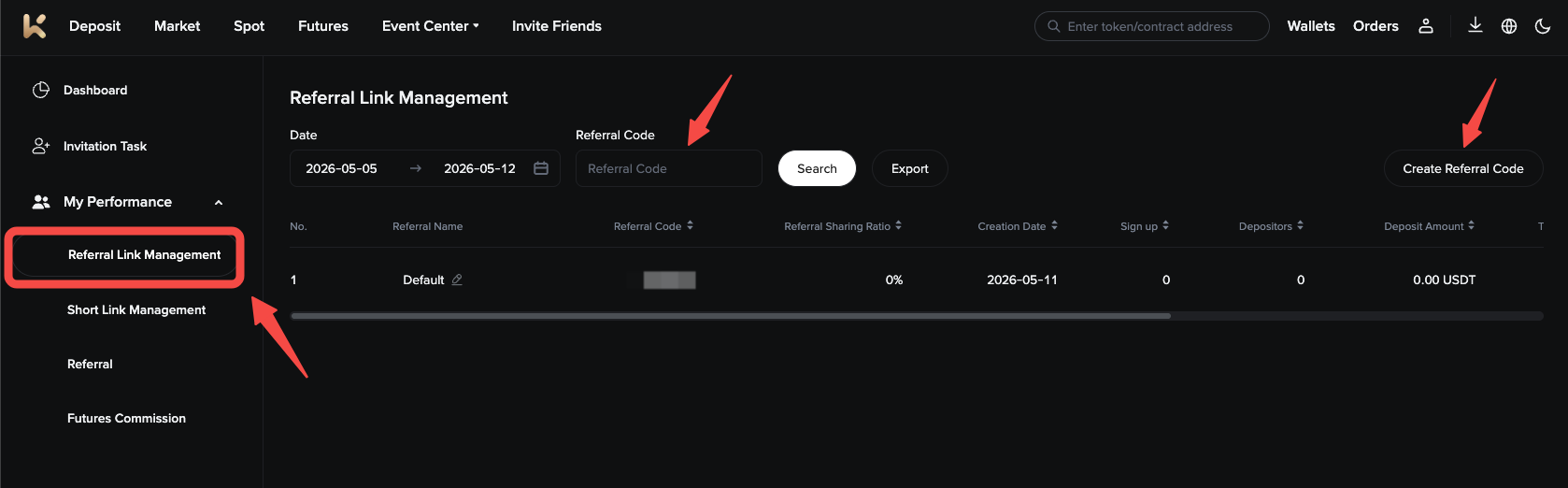
- Referral Link Management:
In the "Referral Link Management" interface, you can view the invitation and user data corresponding to all your invitation links, including statistics such as the number of registrations, depositors, traders, and generated commissions for each link. You may also click "Create Invitation Code" in the upper right corner of the page to generate your own exclusive invitation link. You can quickly search with the invitation code to view detailed information of specific direct referrals. Please note that data in the Referral Link Management interface is updated in real time, allowing you to keep track of and monitor the latest status of your direct referrals at any time.
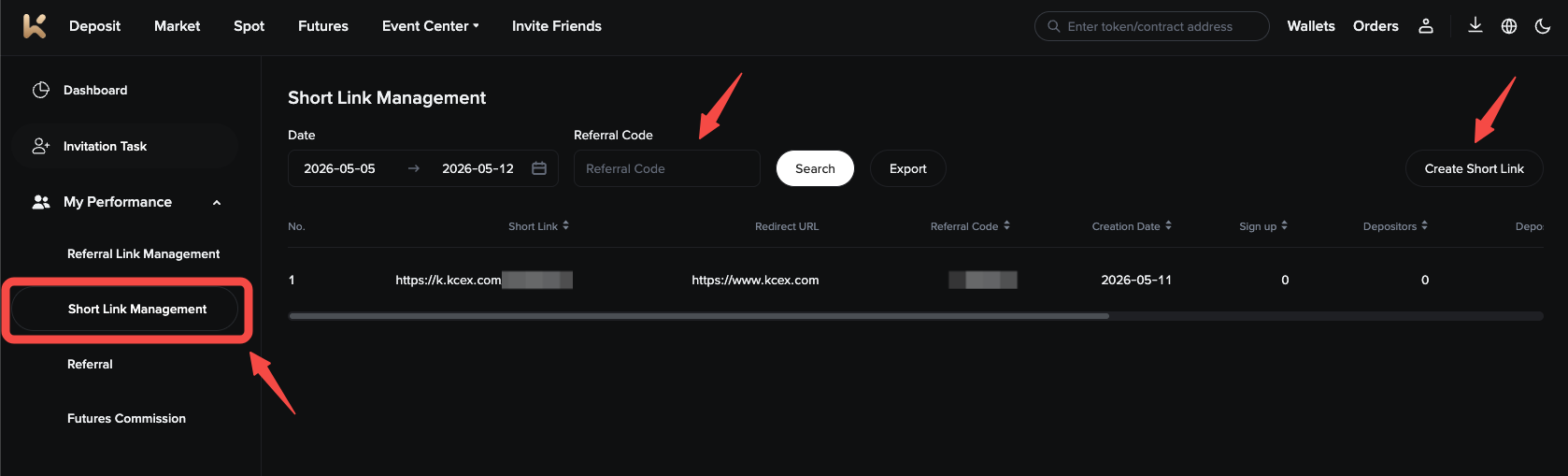
- Short Link Management:
In the "Short Link Management" interface, you can view the invited user data corresponding to all your short links, including statistics on each invitation link such as registrations, depositors, traders, and generated commissions. You may also click "Create Short Link" in the upper right corner of the page to generate your own exclusive short link. You can use the invitation code to quickly search and obtain detailed information of specific direct referrals. Please note that data on the Short Link interface is updated in real time, ensuring you can keep track of and monitor the latest status of your direct referrals at any time.
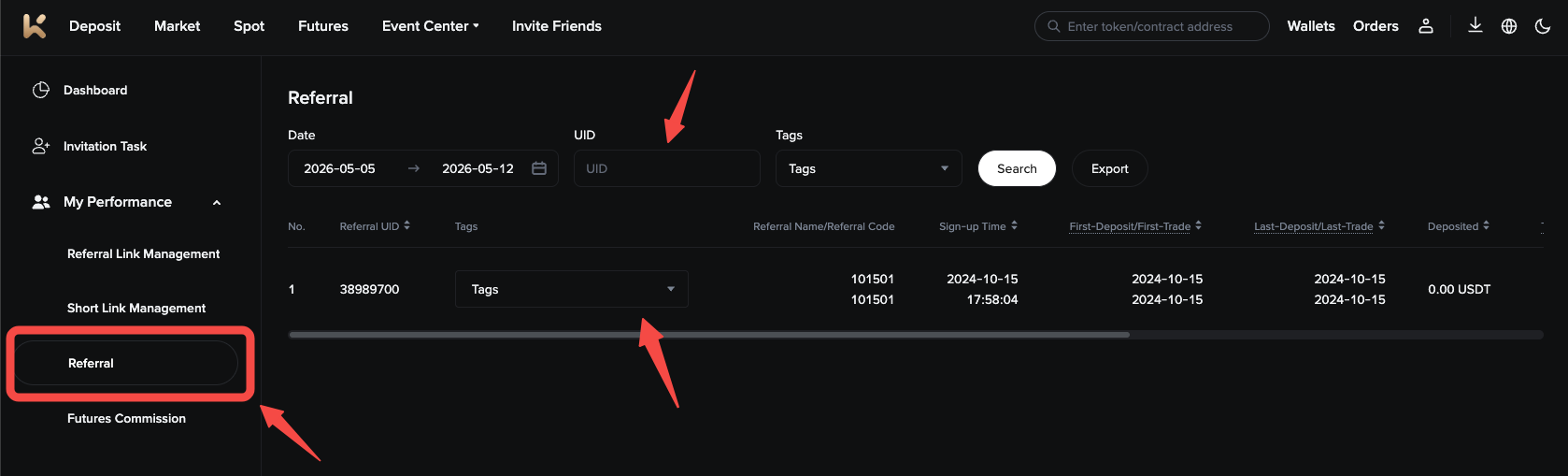
- Referrals:
In the Referrals interface, you can view detailed user data, including deposit amount, generated commissions, and their trading volume. In addition, you can use the tag function to label your referrals. Meanwhile, you can quickly search by account UID to obtain detailed information of specific referrals. Please note that data on the Referrals interface is updated in real time, allowing you to keep track of and monitor the latest status of your referrals at any time.
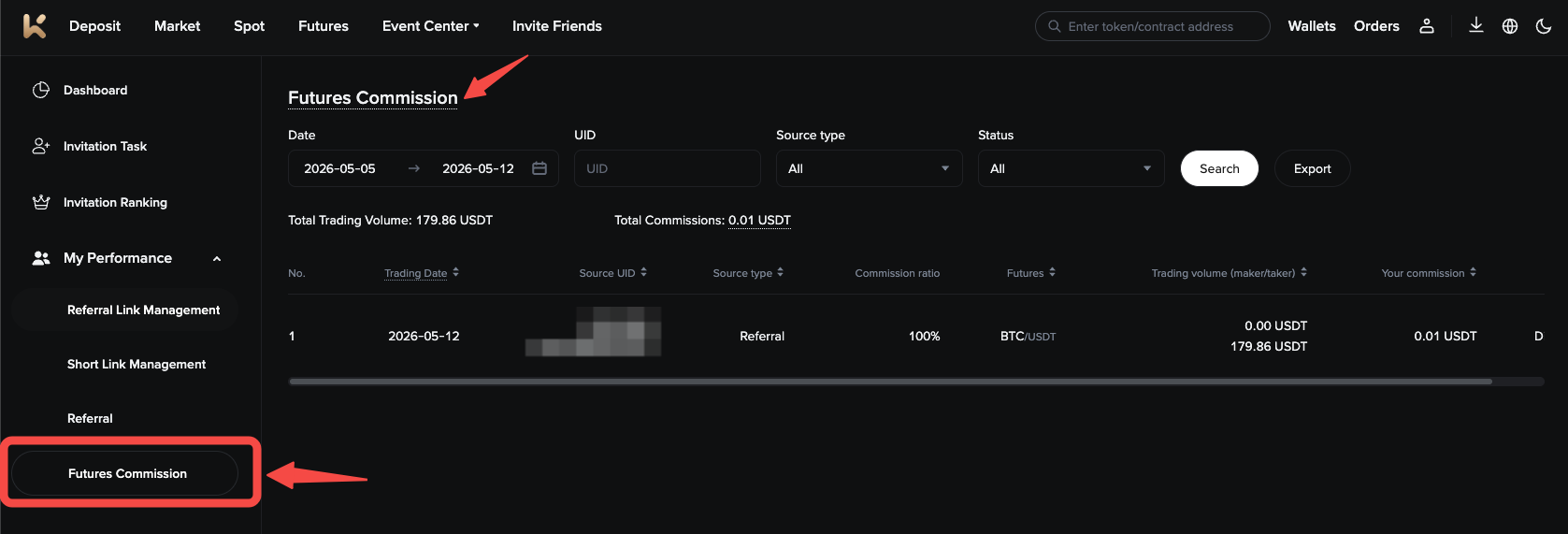
- Futures Commission:
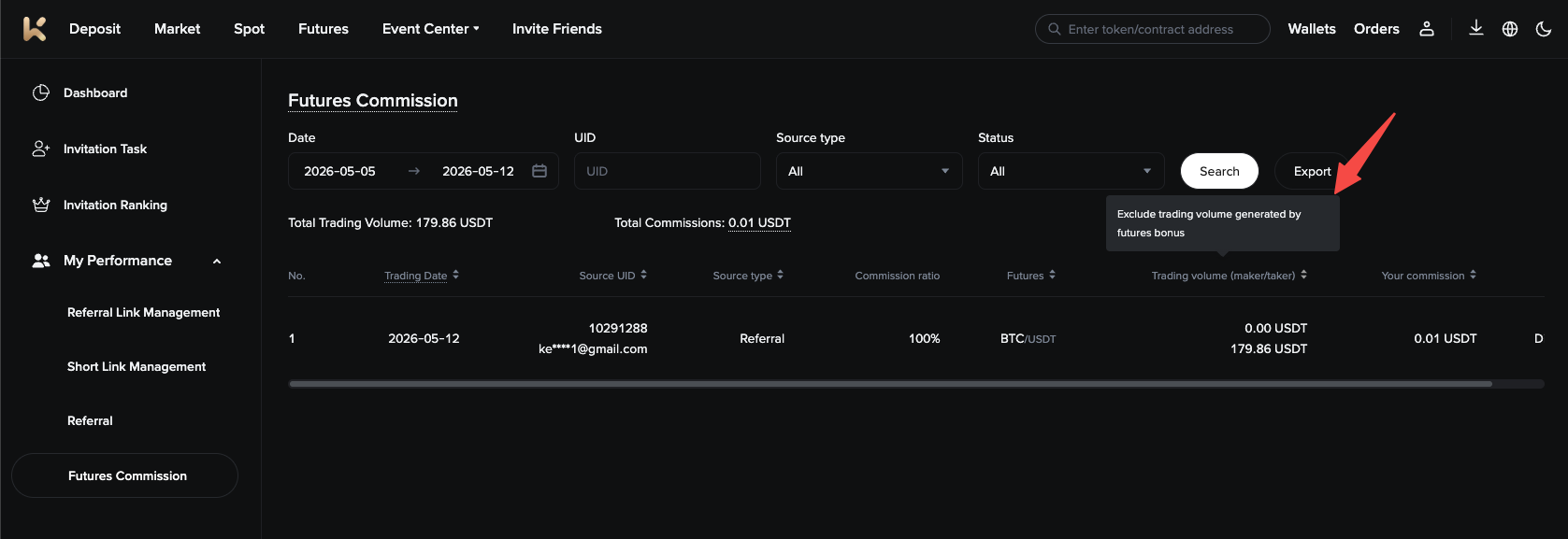
You can view the Futures Commission and trading volume generated by referrals within the selected time period.
Commission data is updated hourly. If the status shows "Pending", the commission has not yet been distributed, please refer to the actual allocated commission amount. If the status is "Distributed", the commission has been issued. After your referrals complete transactions, the Futures Commission will be distributed within 2 hours, and the actual rebate amount shall prevail.
If referrals use futures experience funds to deduct trading fees, the corresponding fees will not be included in rebate calculations. You may check the specific amount of bonus funds used by users for deduction in "Your Commission".
Please note that data on the commission interface is updated in real time, enabling you to keep track of and monitor the latest commission dynamics at any time.
Meanwhile, you can also check your commission records via "Wallets" - "Transaction History" - "Commission Records".
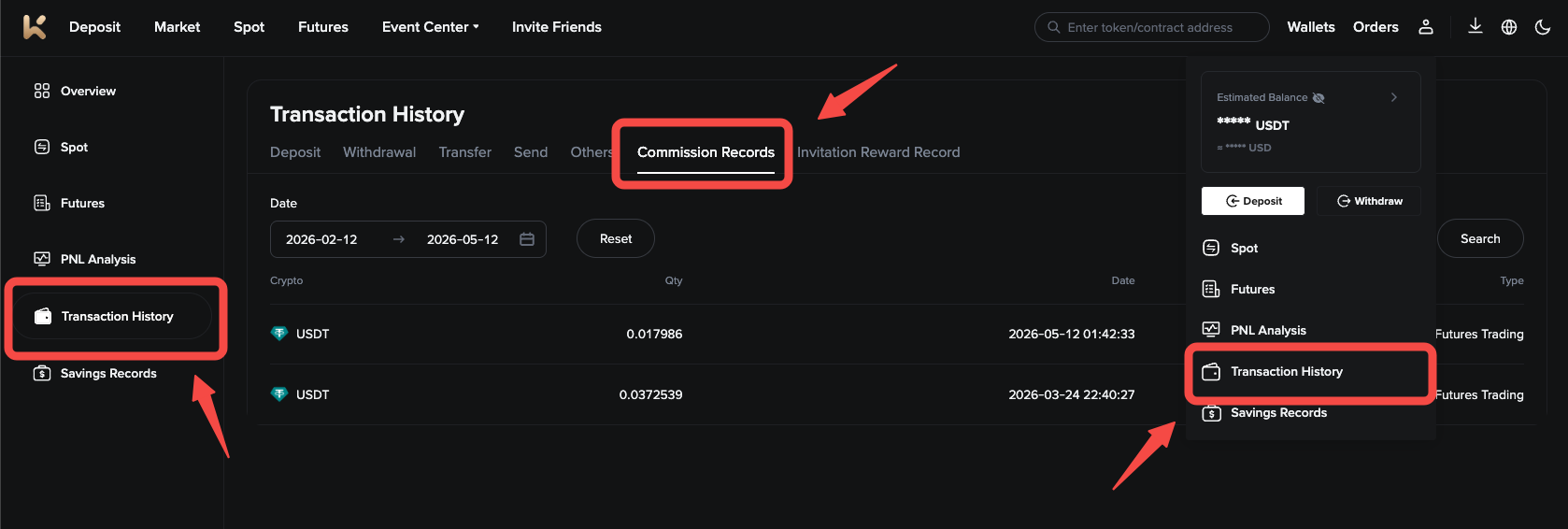
In addition, any trading volume generated by using experience funds will not be included in the statistics on the commission interface.
Should you encounter any questions or require assistance during use, feel free to contact your dedicated account manager via the contact information provided at the bottom of the menu bar, or click the customer service icon in the lower right corner to reach our 24/7 online support team. You may also send an email to affiliate@kcex.com, and we will provide you with dedicated support at all times.