

KCEX Spot Trading Tutorial: Trading Rules, Order Types and Operation Guide
2026-08-19 14:30:13
What is Spot Trading?
Spot trading refers to exchanging one digital asset for another. Take the ETH/USDT trading pair as an example: ETH is the trading currency while USDT serves as the quote currency, meaning users purchase ETH with USDT. Most mainstream trading pairs are priced in USDT.
Most spot markets operate 24/7 with real-time price updates for round-the-clock trading.
The official announcement sets the spot launch time for newly listed tokens.
1. Deposit Funds
Fund your spot wallet before spot trading by transferring digital assets such as USDT to your KCEX spot account.
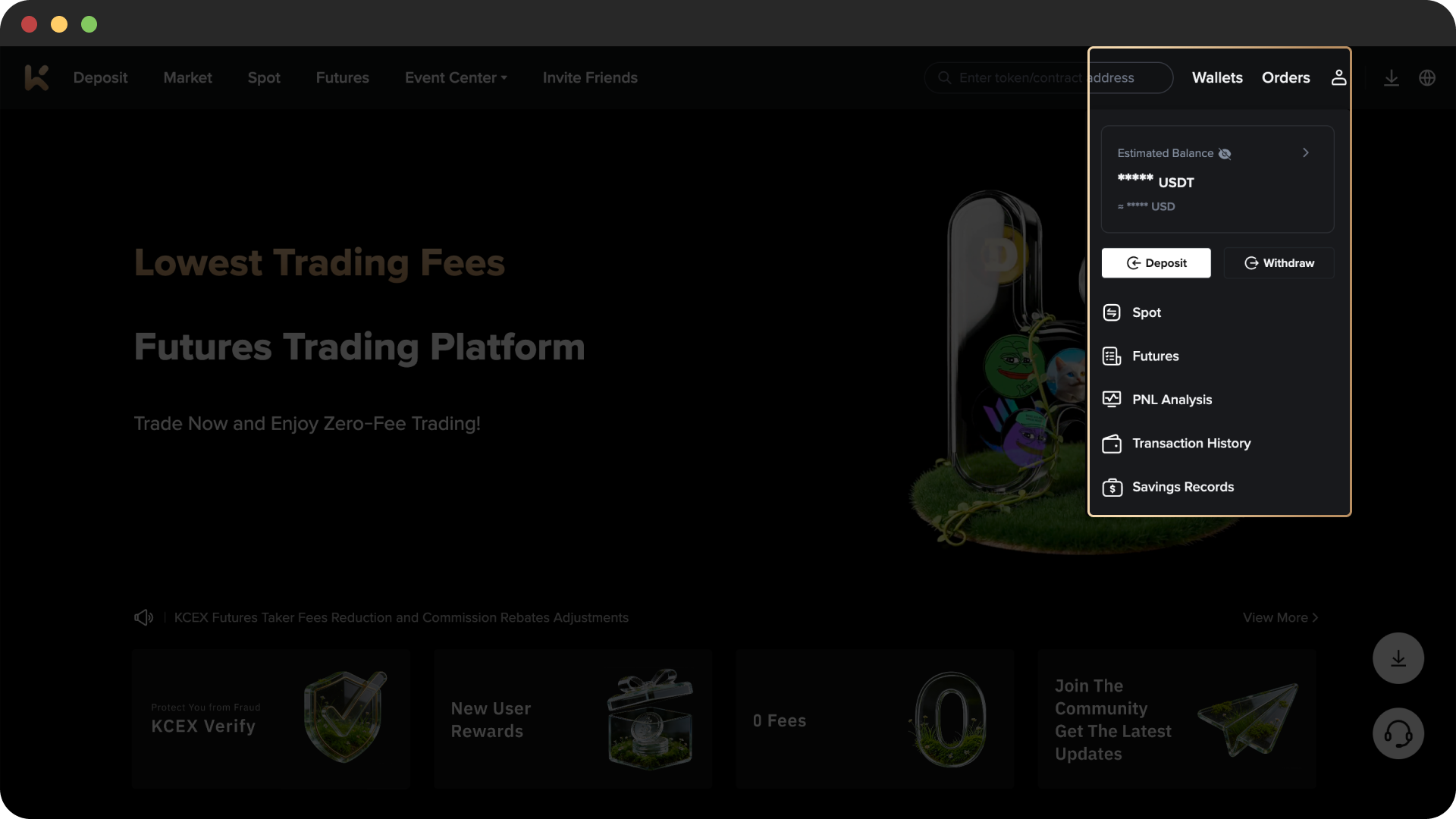
Click Wallets at the top right of the homepage → Deposit
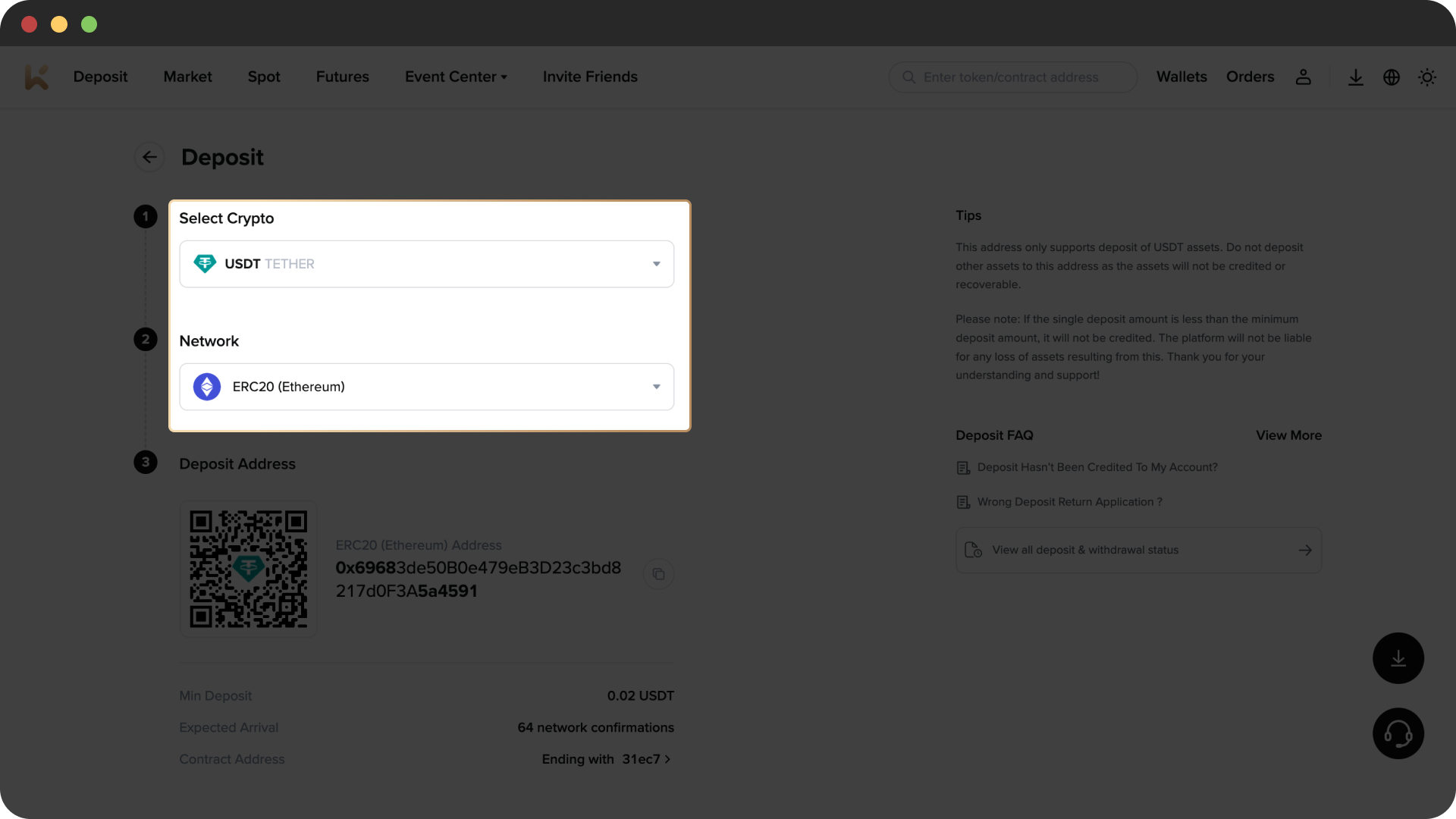
Select your token (take USDT for instance): click Select Crypto → choose Network. Confirm the cryptocurrency and network, verify the deposit address and corresponding network, then complete the fund transfer.
2. Place Trades
Two common order types are available for spot orders: Limit Order and Market Order.
- Limit Order: Enter your target trading price and quantity, then click Buy/Sell. Orders will fill at the best available price within your set limit once market prices match your expectations.
- Market Order: Input your target purchase amount or sell quantity; orders get filled instantly at prevailing market prices.
2.1 Buy Spot
Example: DOGE Limit Order
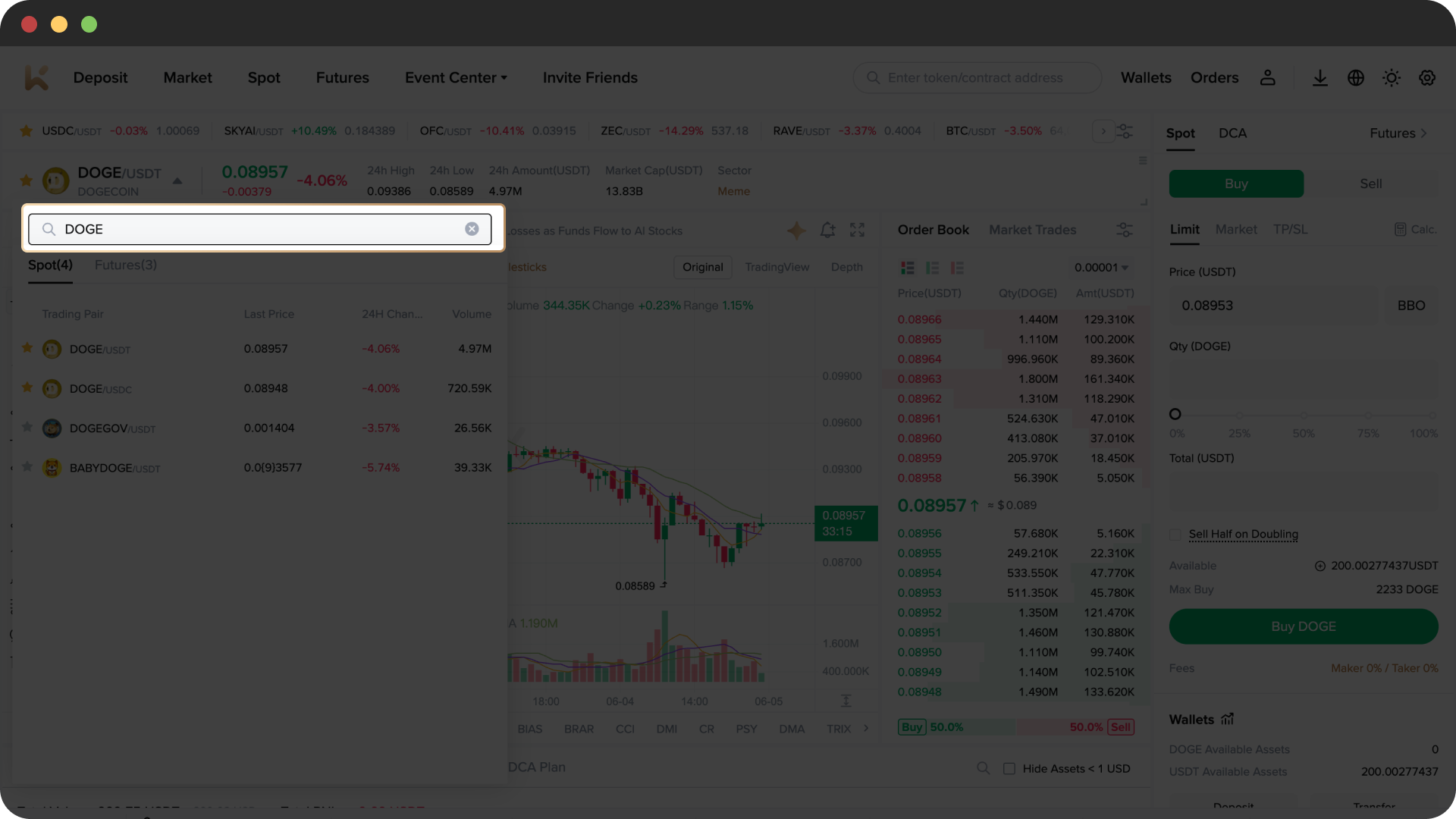
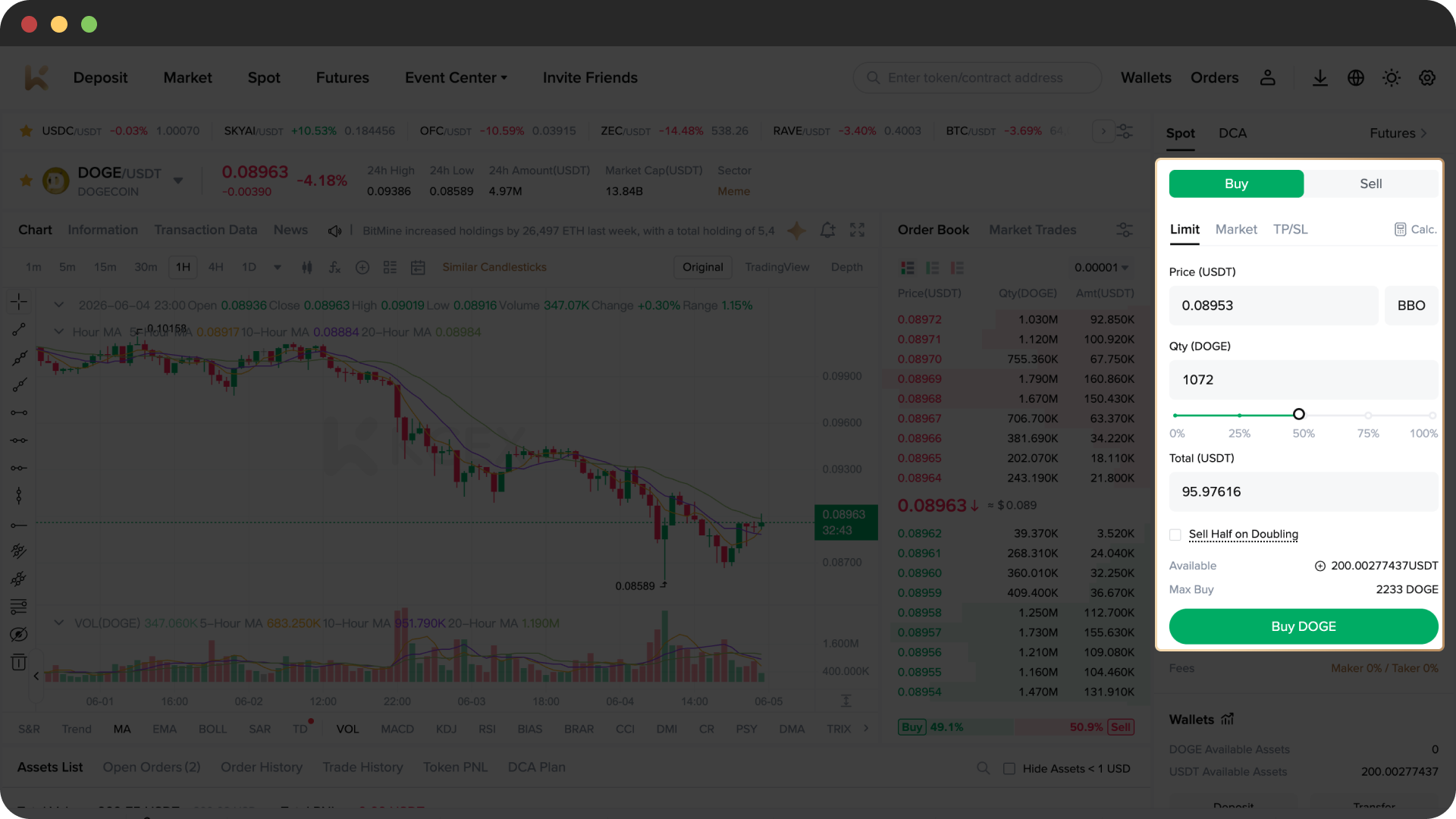
From homepage, tap Spot, search DOGE and open the DOGE/USDT pair. On the right-hand trading panel: tap Buy → Limit, input price & amount → click Buy DOGE to confirm your order.
Tips:
You may modify orders or set take-profit/stop-loss in the order book for proper risk management.
Orders enter the matching system and execute automatically when market prices hit your preset limit price.
2.2 Sell Spot
Example: DOGE Limit Order
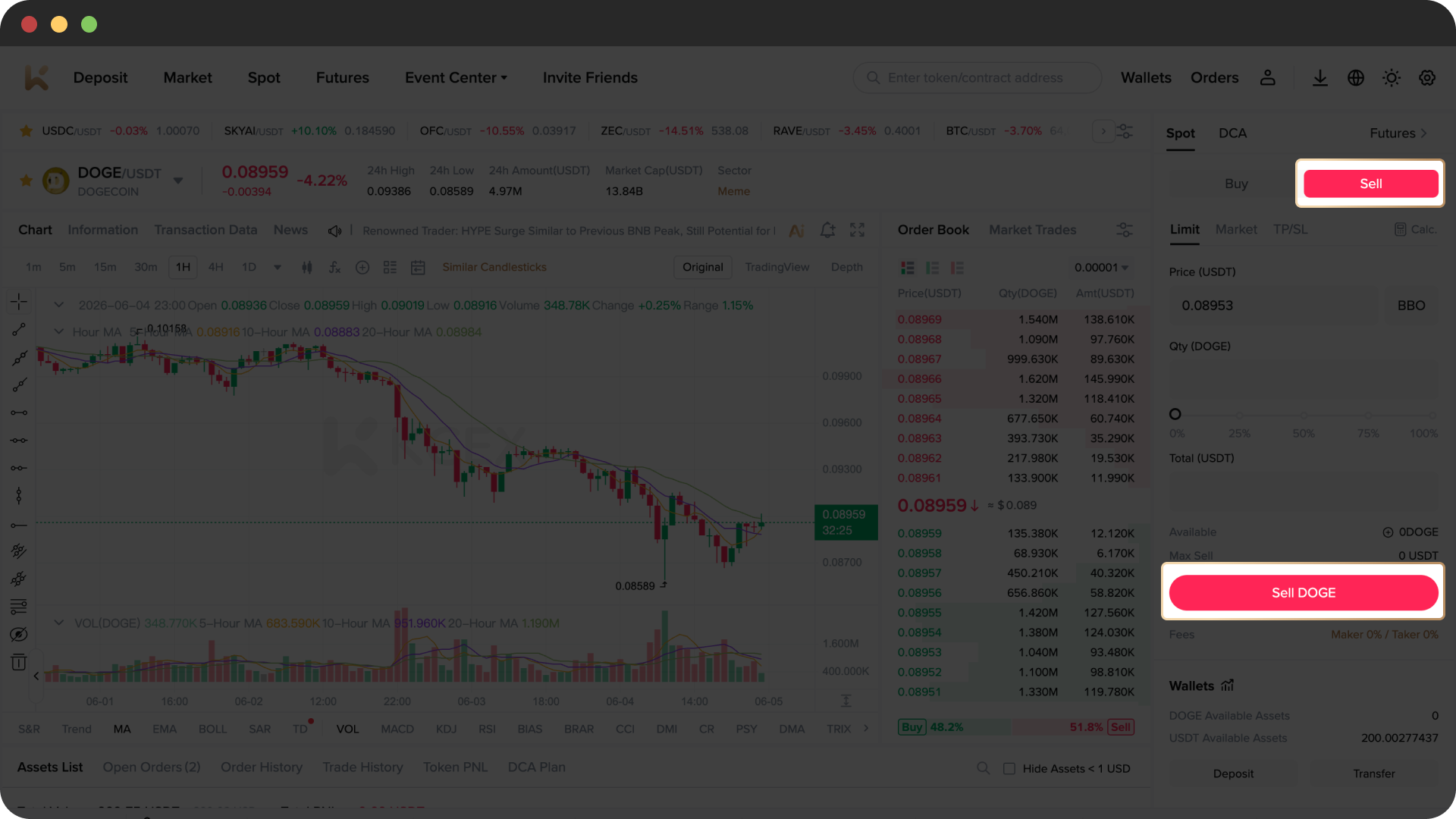
From homepage, open Spot, search DOGE and enter the DOGE/USDT trading page. On the right trading zone: tap Sell → Limit, fill in price and quantity → click Sell DOGE to submit the order.
Tips:
Adjust existing orders in the order panel to control trading risks after placement.
Minimum trading volume applies to certain tokens; orders below the threshold cannot be executed.
3. Check Pair Info & Order History
3.1 View Trading Pair Data
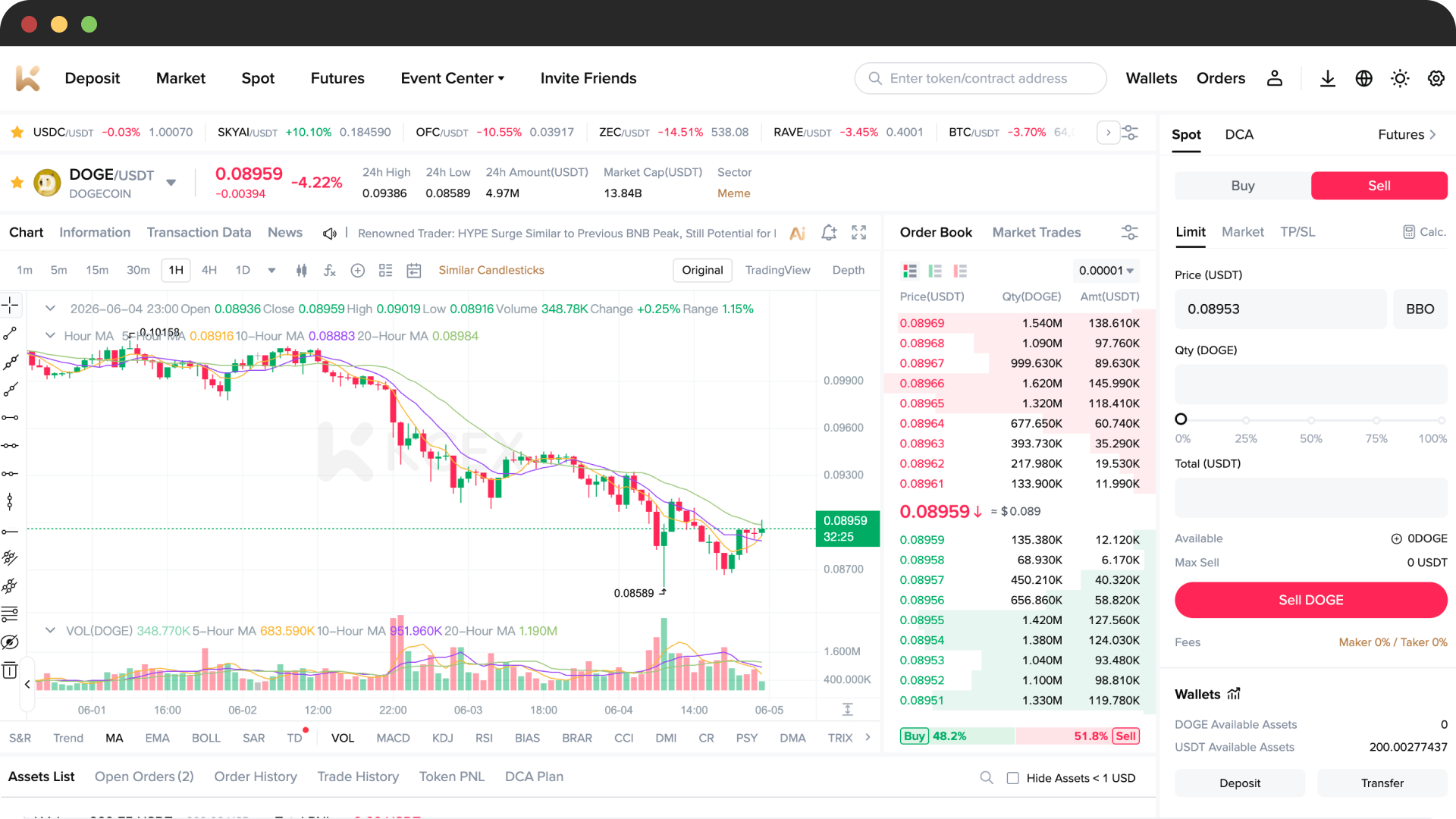
Left side of the trading page displays K-line charts, real-time pricing and trading volume. Right side has two tabs: Order Book and Market Trades. Sell orders are listed above while buy orders sit below, with the trading panel on the far right for order placement.
3.2 Review Orders
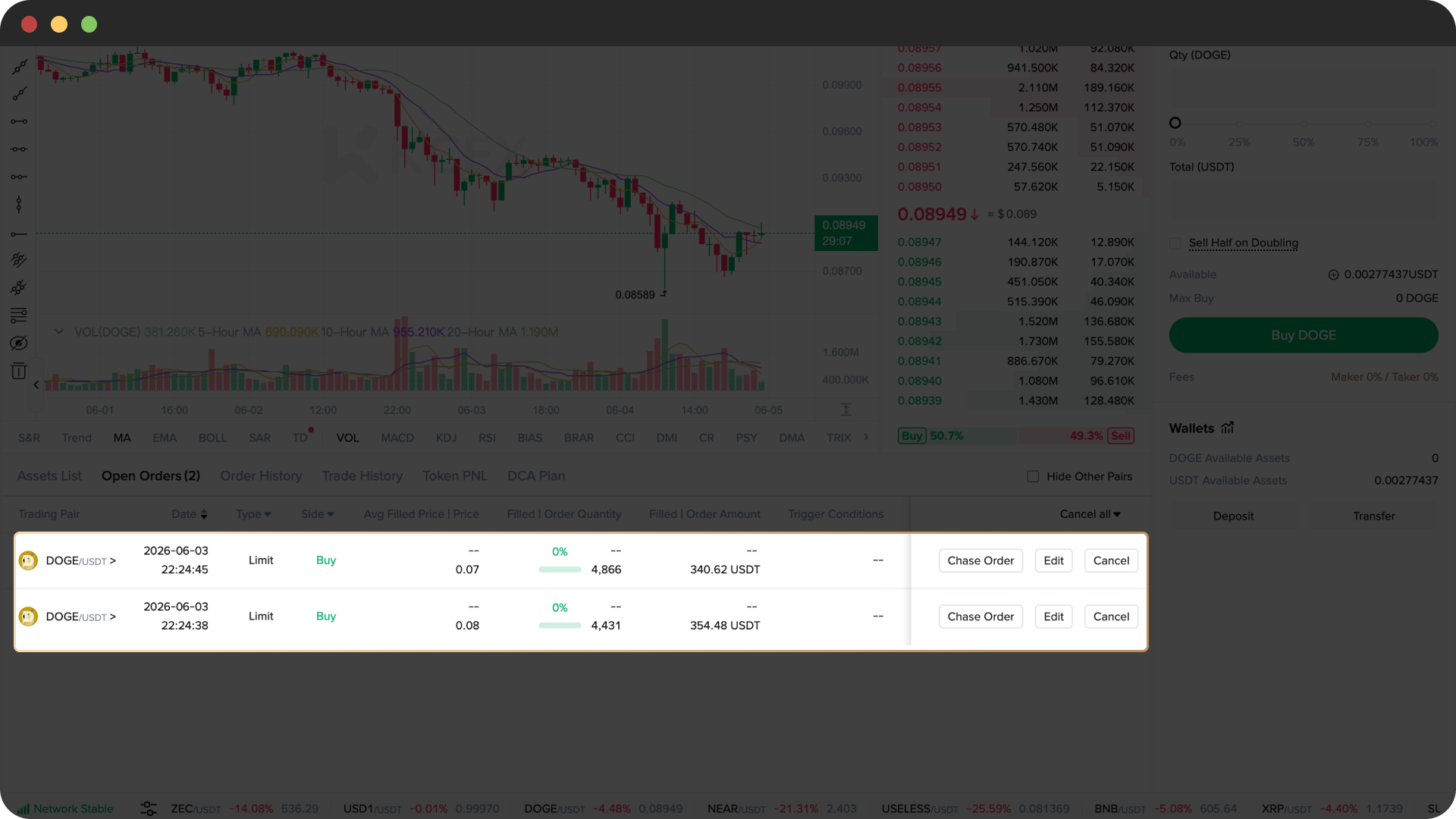
Bottom-right of the trading page includes tabs: Assets List / Open Orders / Order History / Trade History / Token PNL / DCA Plan.
- Open Orders: Unfilled pending orders
- Historical Orders: Completed or cancelled orders with details on submission time, trading pair and filled volume.
4. Check Spot Capital Flow
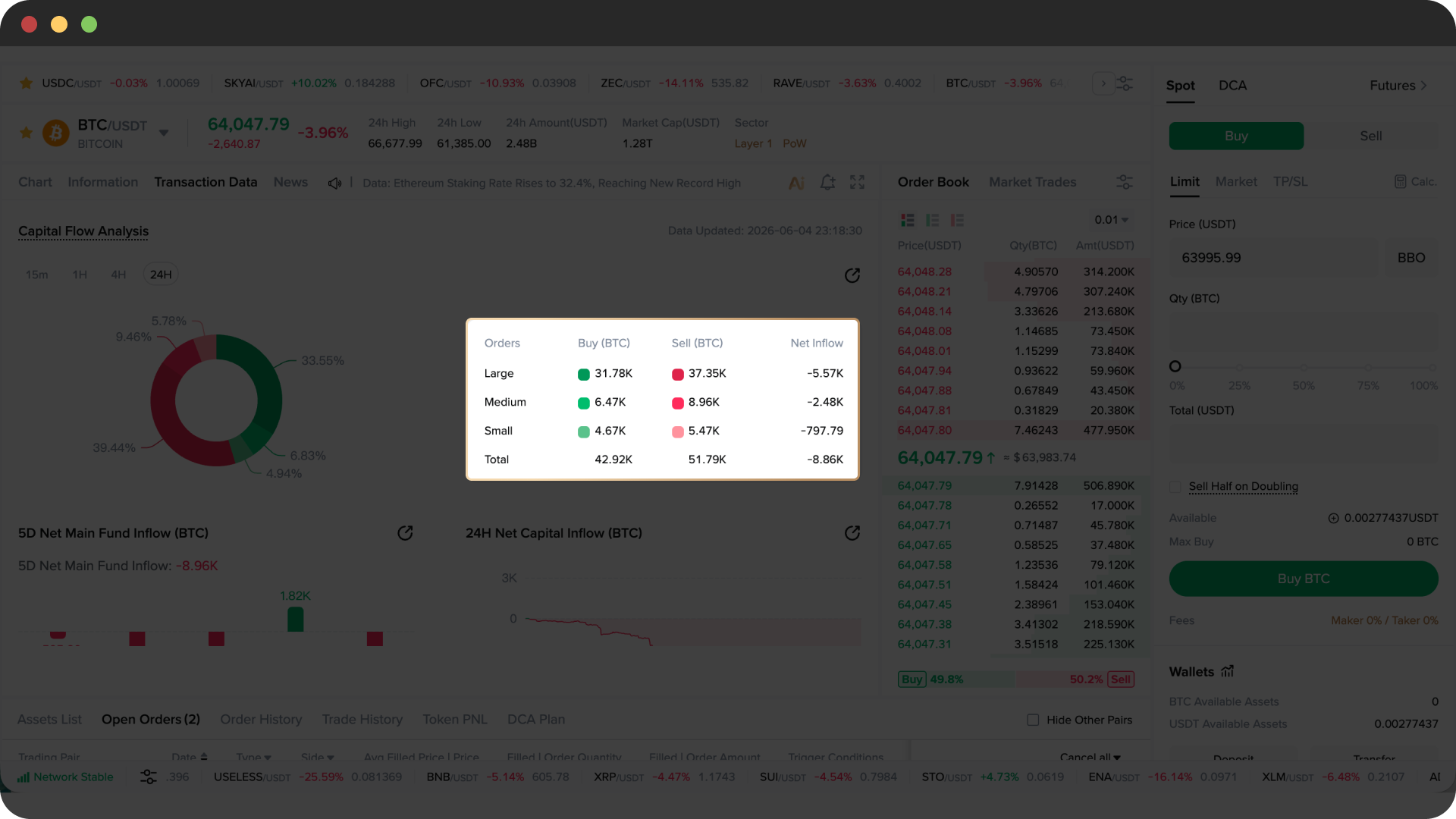
Visit KCEX official website → open Spot → search target token → select Transaction Data on top to view Capital Flow Analysis, 5D Net Main Fund Inflow, 24H Net Capital Inflow and buy/sell volume statistics.
Disclaimer
This content is for reference only and may feature products unavailable in your jurisdiction. The content does not constitute: (i) investment advice or recommendations; (ii) an offer or solicitation to buy, sell or hold digital currencies/assets; or (iii) financial, accounting, legal or tax counsel. Digital assets including stablecoins and NFTs carry substantial price volatility risks. Evaluate your financial standing and risk tolerance before trading, and consult professional legal, tax or investment advisors for personalized guidance. All market data and statistics herein are general references only. While reasonable care is taken to ensure content accuracy, KCEX accepts no liability for factual errors or omissions.