

KCEX Futures Trading Guide (Web): How to Open Positions, Adjust Leverage and Margin, and Manage Orders
2026-09-03 20:52:58
This guide explains how to trade futures on the KCEX Web platform, including selecting a futures trading pair, transferring funds, adjusting leverage and margin modes, selecting an order type, opening long or short positions, viewing current positions, and checking historical orders. Whether you are new to cryptocurrency futures trading or want to become familiar with KCEX futures trading features, this article will help you quickly understand the complete futures trading process.
1. Access Futures Trading and Select a Trading Pair
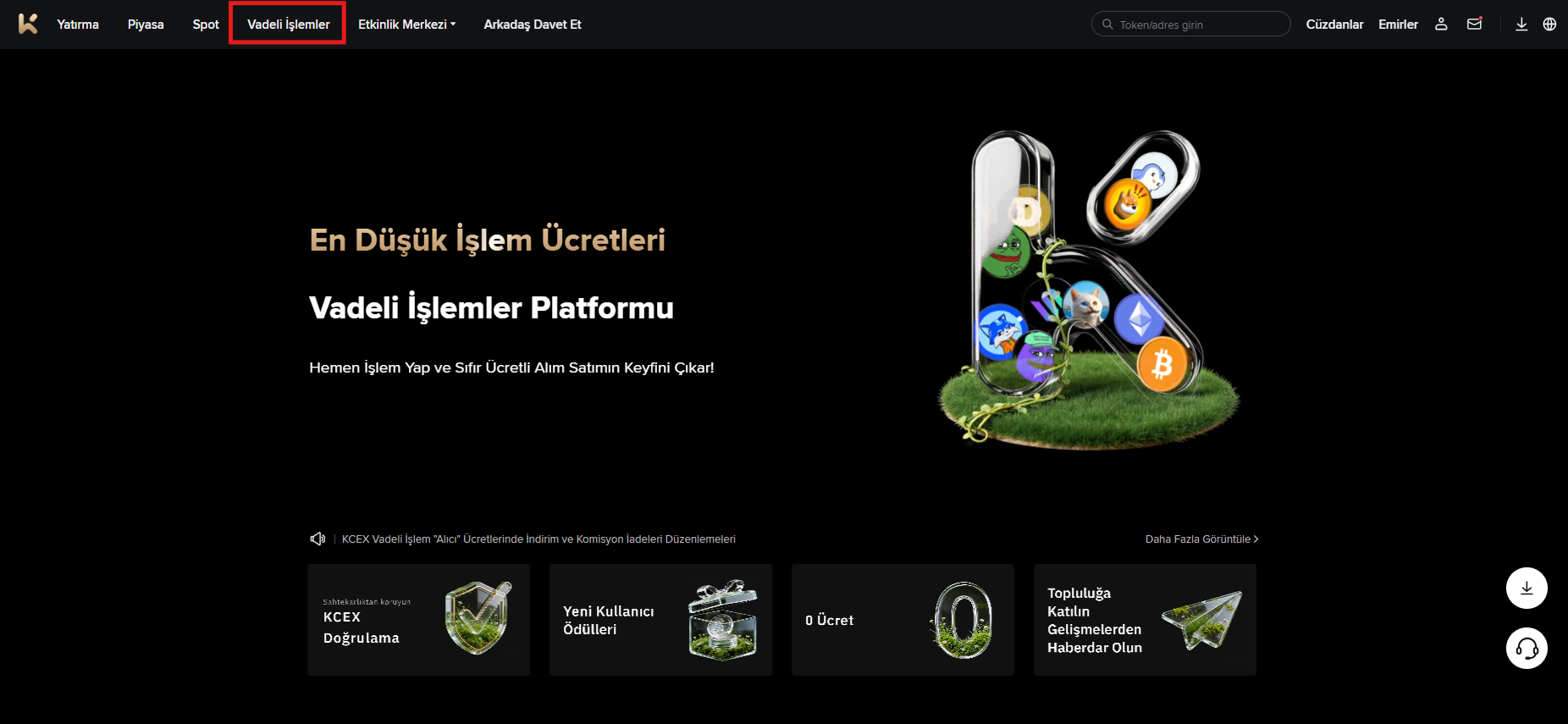
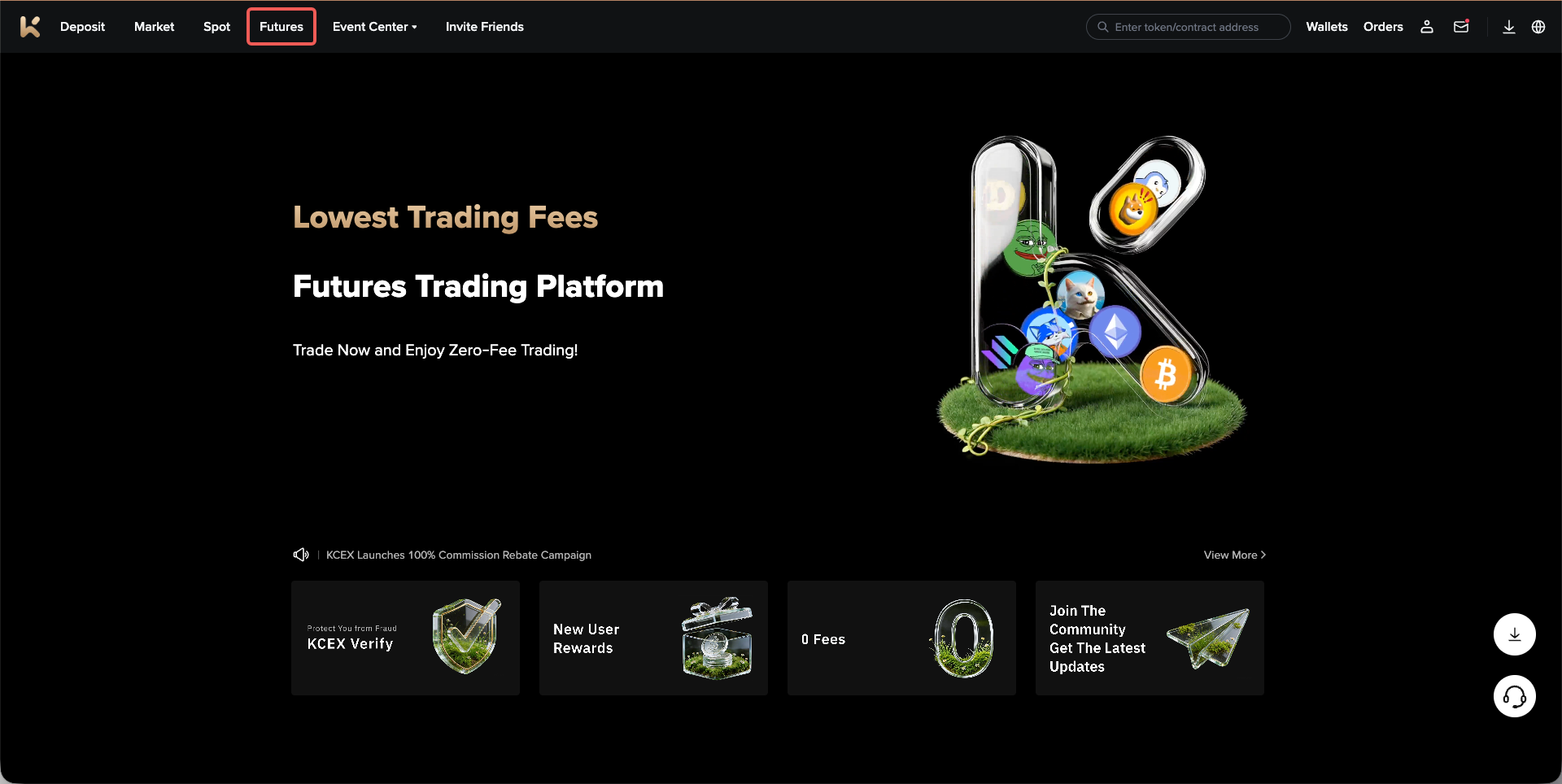
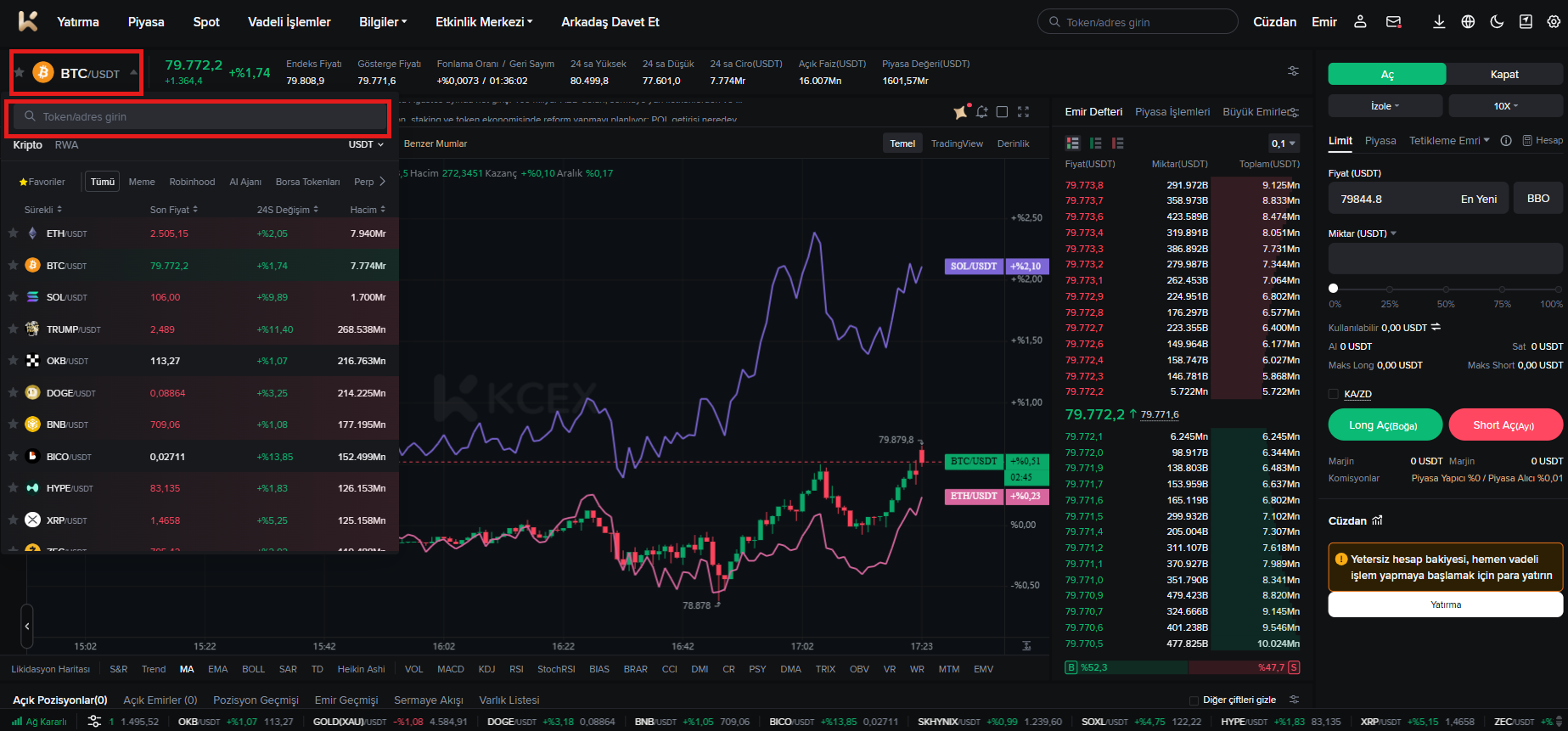
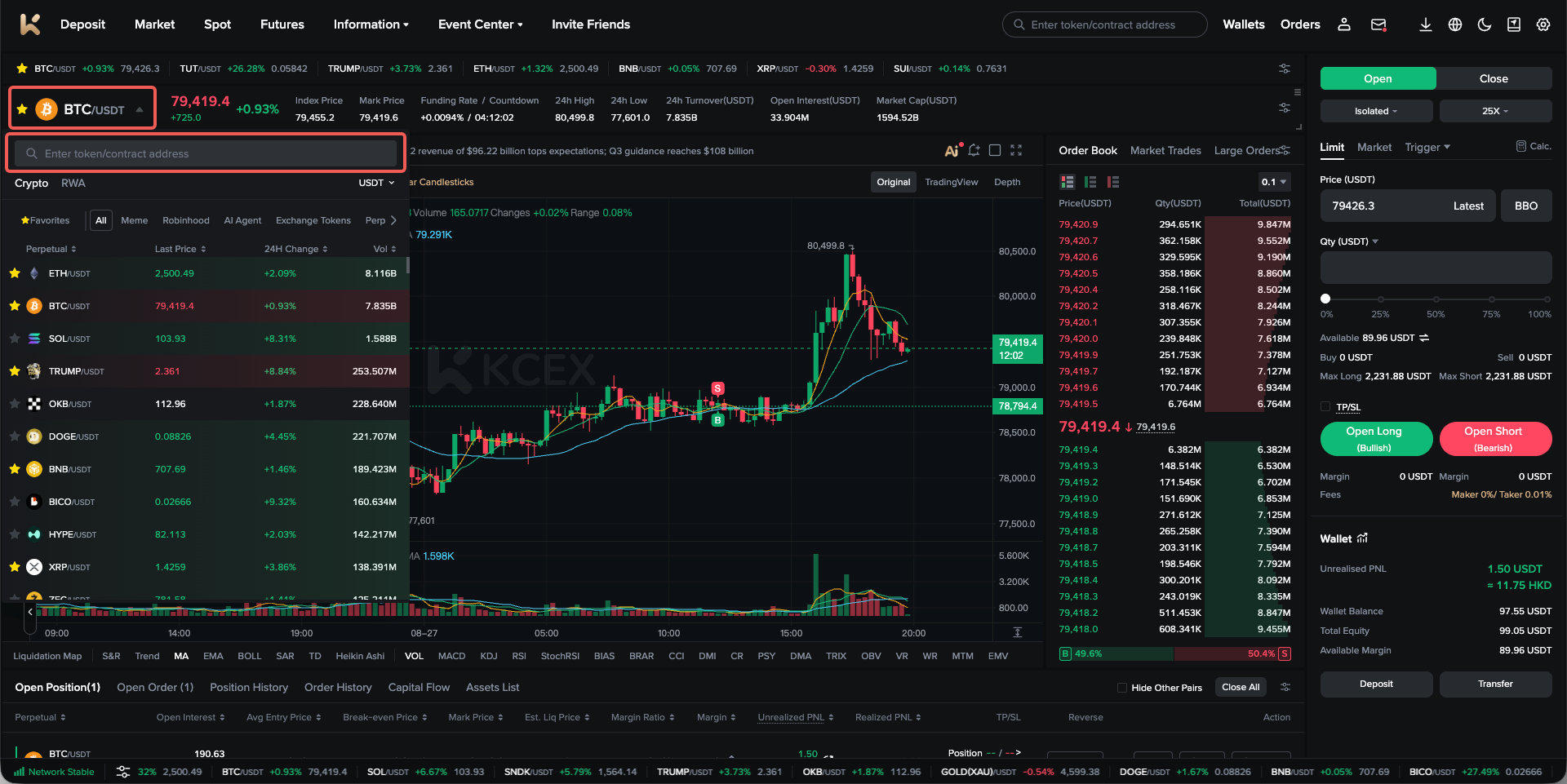
After logging in to your KCEX account, click “Futures” in the menu bar to enter the futures trading page. Hover over the trading pair name in the upper-left corner to open the trading pair list. Here, you can search for the cryptocurrency you want to trade or filter cryptocurrencies by category, trading volume, or price change.
2. Fund Management
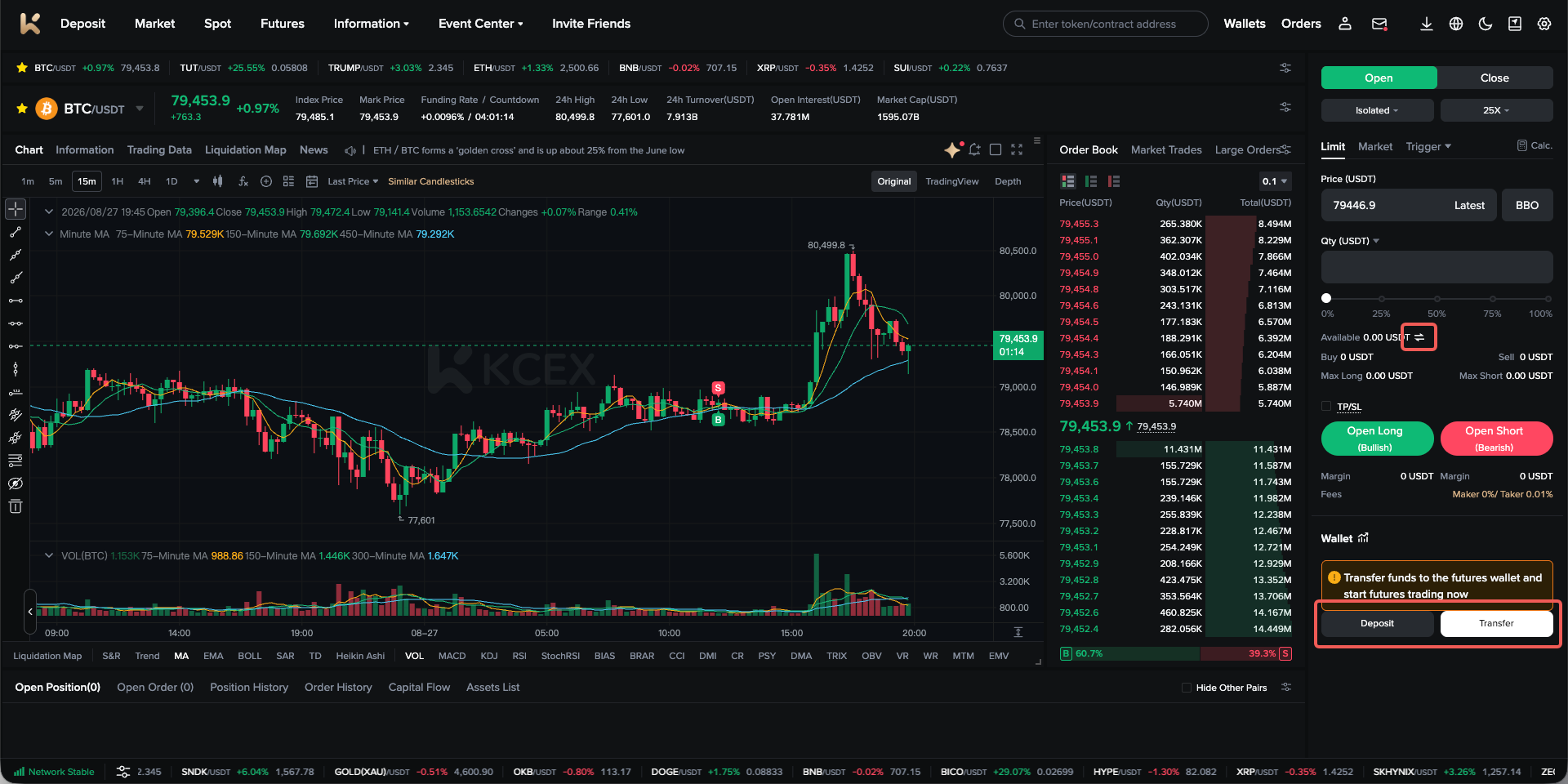
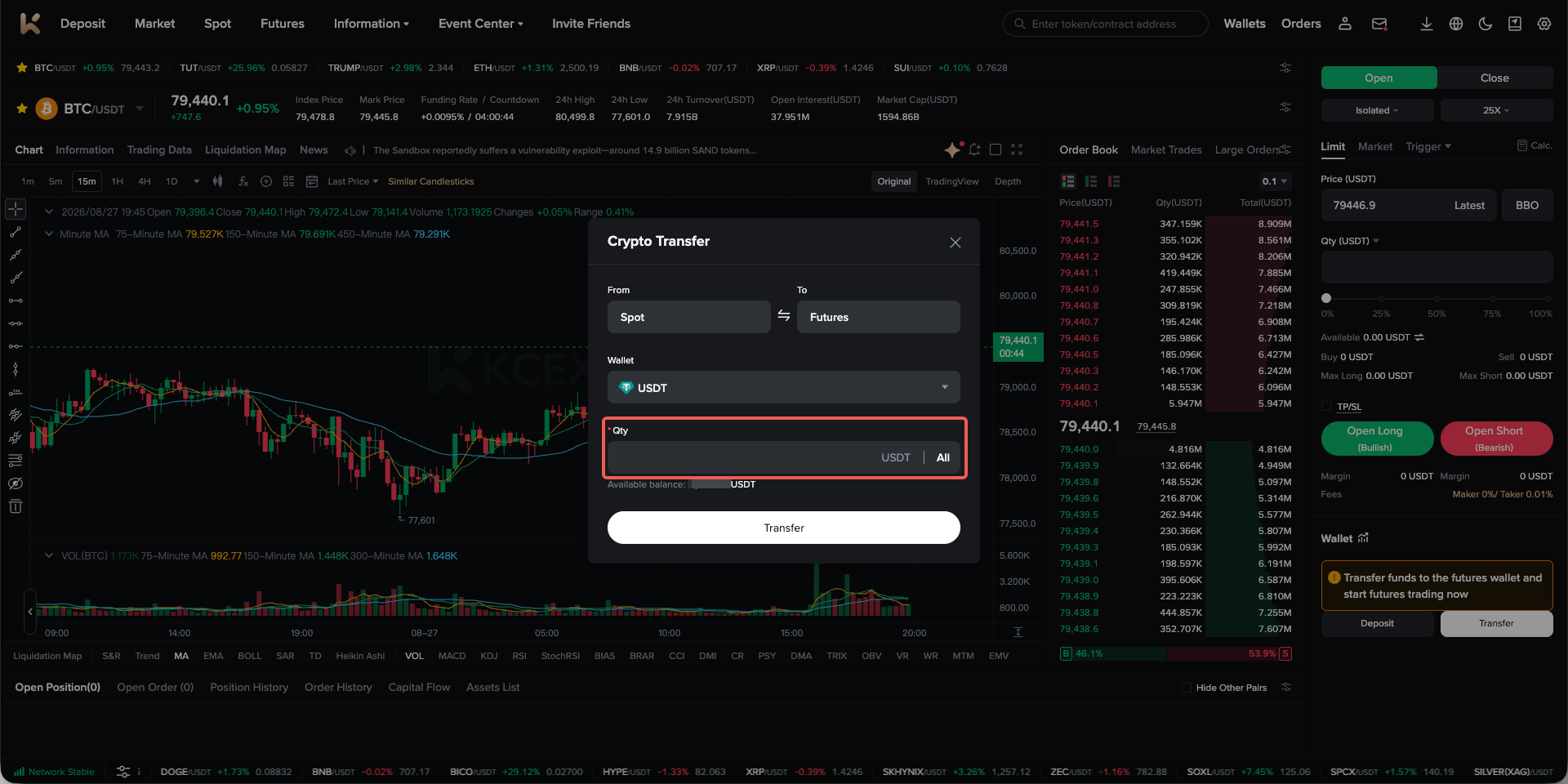
Before trading futures, make sure your futures account has sufficient funds. If the balance in your futures account is insufficient, you can transfer funds from your spot account to your futures account. If your spot account also has insufficient funds, you will need to make a deposit to ensure that you have enough funds to trade.
You can click the transfer icon on the futures trading page to transfer funds.
3. Adjust Leverage
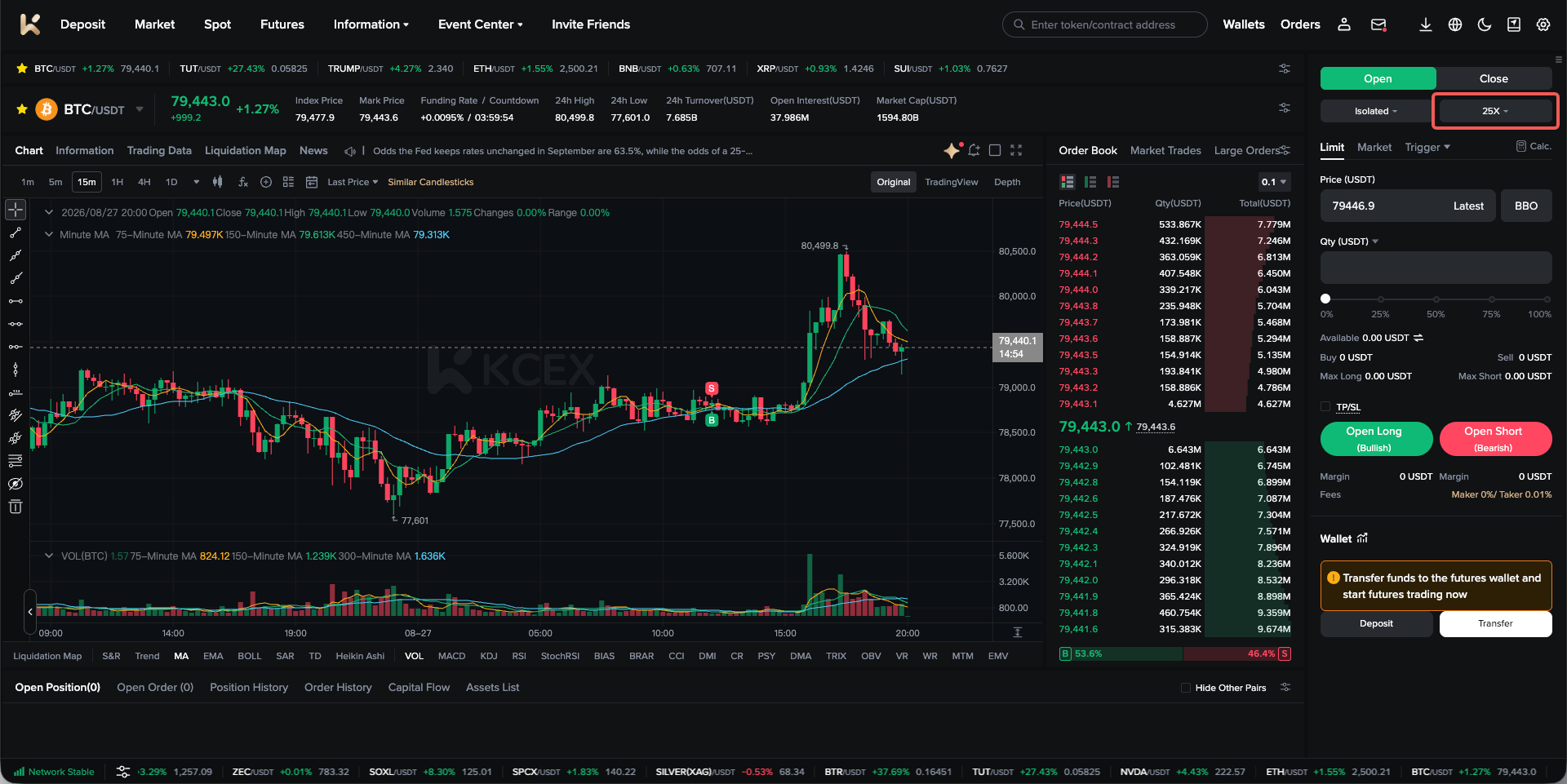
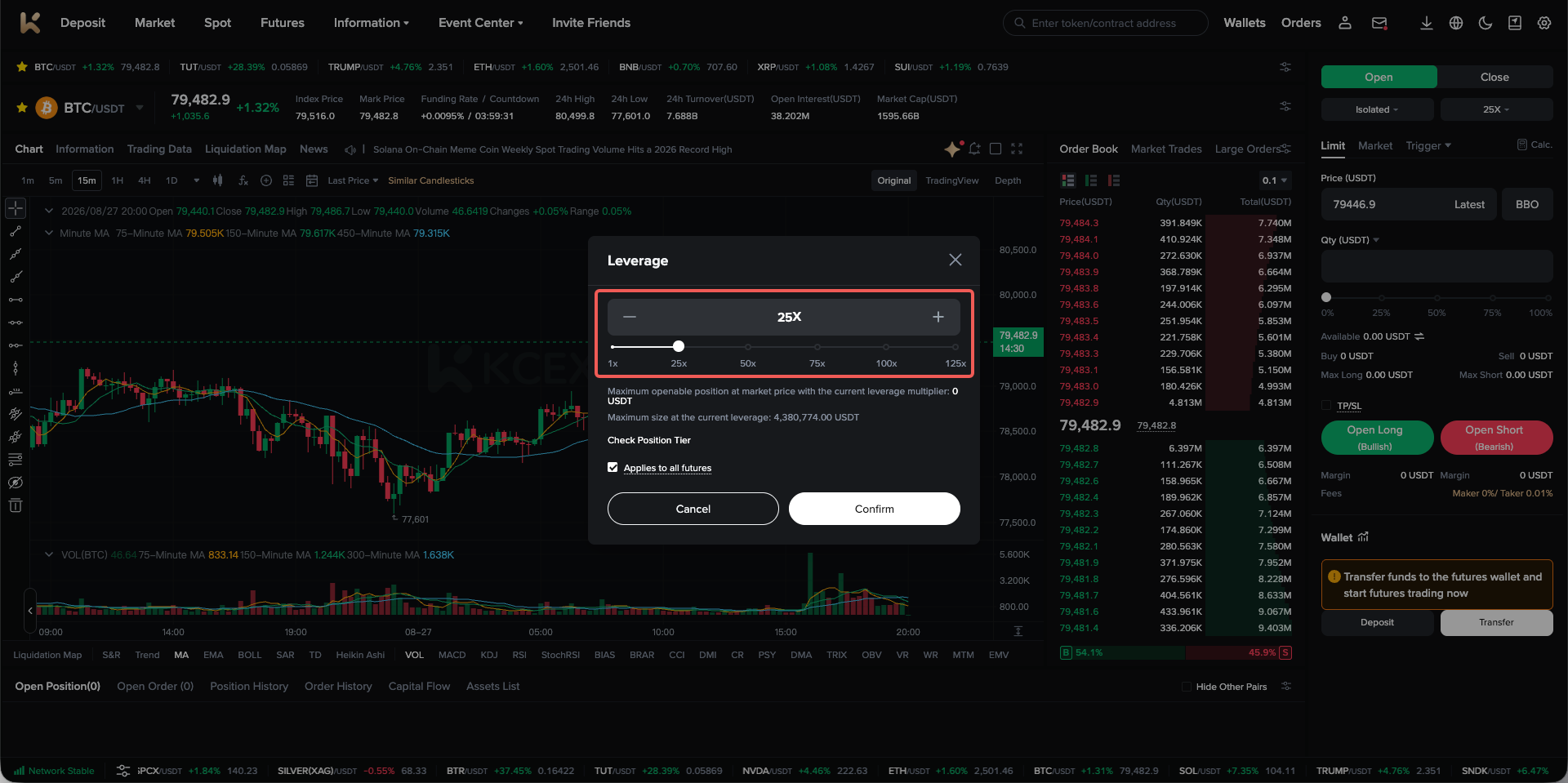
KCEX supports leverage of up to 125x. The maximum leverage available varies depending on the trading instrument.
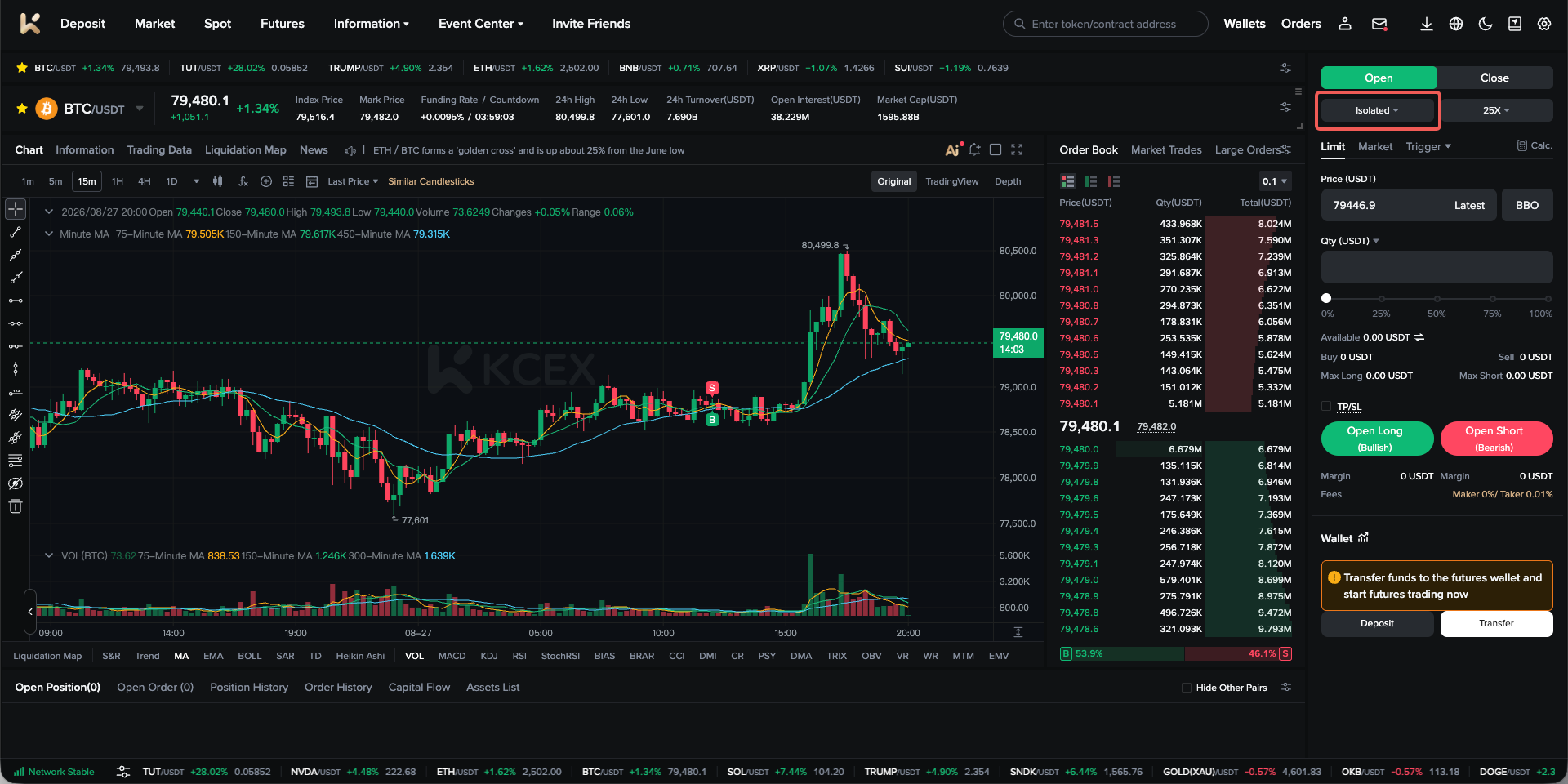
Click the leverage button at the top of the order placement section on the futures trading page to adjust the leverage in the pop-up window.
4. Adjust the Margin Mode
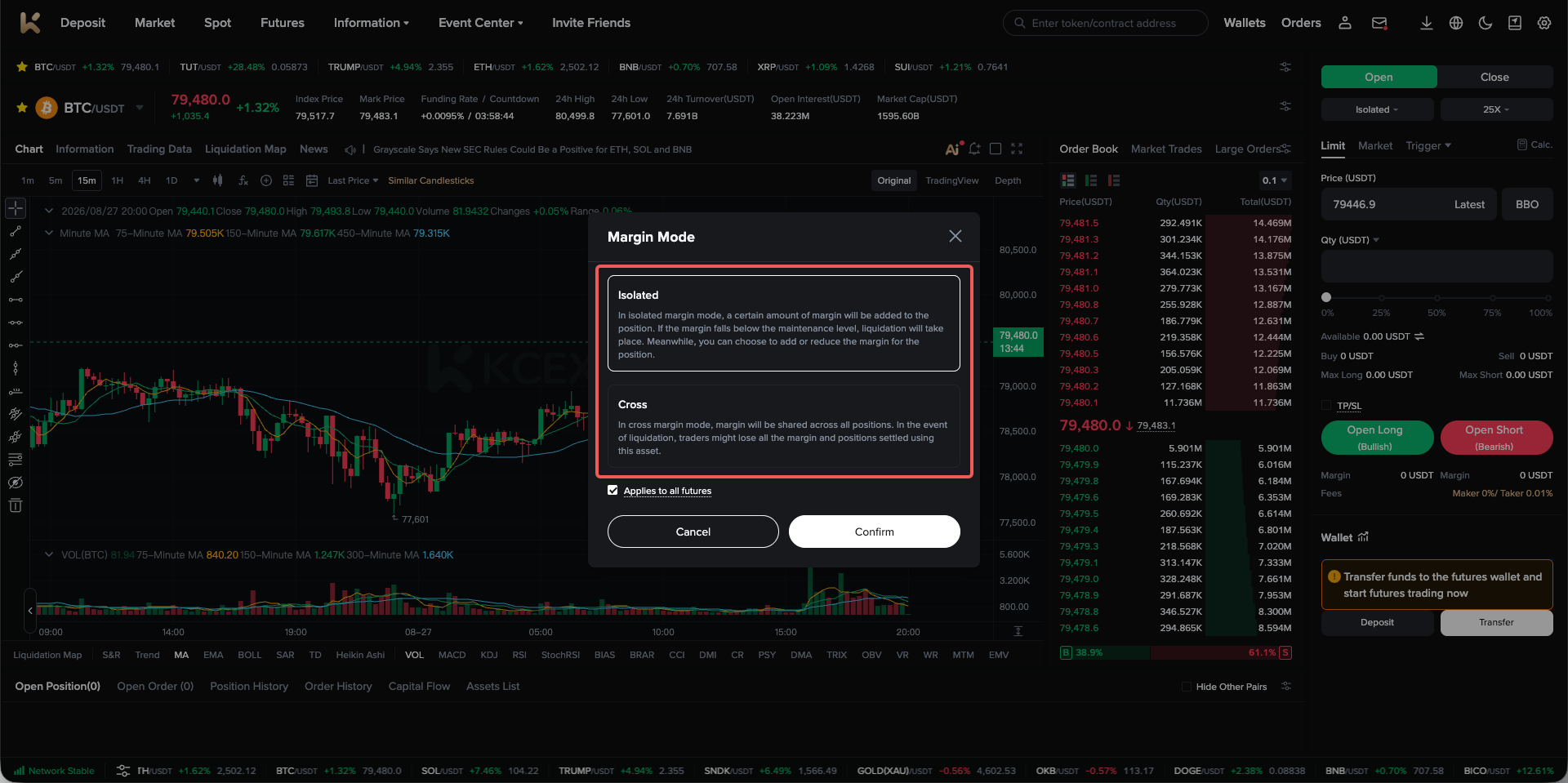
Cross Margin Mode: Under Cross Margin Mode, all cross-margin positions share the cross margin of the asset. In the event of liquidation, the trader may lose the entire margin and all cross-margin positions associated with that margin asset.
Isolated Margin Mode: Under Isolated Margin Mode, a specific amount of margin is allocated to the position. If the position margin falls below the maintenance margin requirement, the position will be liquidated. You can also choose to add or reduce the margin allocated to the position.
Click the margin mode button at the top of the order placement section on the futures trading page to adjust the margin mode in the pop-up window.
5. Order Types
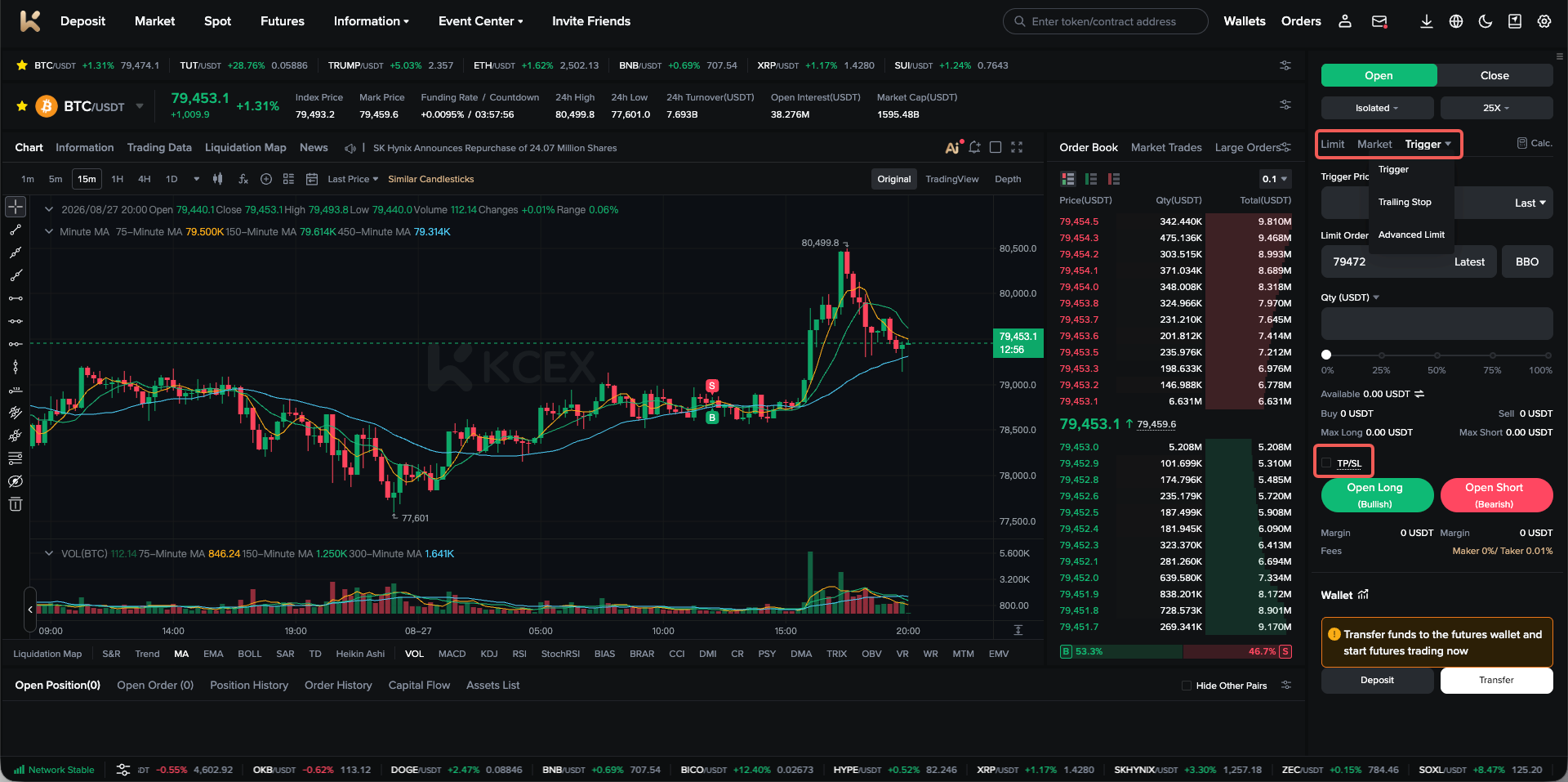
KCEX provides multiple order types to accommodate different trading scenarios, including Limit Orders, Market Orders, Trigger Orders, and Take-Profit and Stop-Loss Orders, making your trading operations more flexible and efficient.
(1) Limit Order: Set a specific price, and the order will be executed at that price or a better price.
(2) Market Order: The order is executed quickly at the best available market price and is suitable for users who want to trade immediately.
(3) Trigger Order: When the market reaches the preset trigger price, an order is automatically placed at the specified price, helping users capture market opportunities or manage risk.
(4) Trailing Order: Set a trigger price that adjusts according to changes in the market price. When the market reaches this price, an order is automatically placed. This order type helps users retain profits while limiting losses.
(5) Advanced Limit: An Advanced Limit Order is an order type based on a Limit Order. It includes four time-in-force mechanisms: Post Only, IOC (Immediate or Cancel), FOK (Fill or Kill), and GTD (Good Till Date).
- Post Only: A Post Only order is placed on the market. If it would immediately match an existing order, it will be canceled, ensuring that the order is executed as a Maker order.
- IOC (Immediate or Cancel): If the order cannot be executed immediately at the specified price, the unfilled portion will be canceled.
- FOK (Fill or Kill): If the order cannot be filled in full, the entire order will be canceled immediately.
- GTD (Good Till Date): If this type of order is not fully executed, it will be automatically canceled on the specified date.
(6) Take-Profit and Stop-Loss: Take-profit and stop-loss conditions can be attached to an opening order or set for a specific position after it has been opened. When the market price reaches the specified price, the position will be automatically closed. Take-profit and stop-loss orders are important and commonly used risk-management tools that can help users lock in profits and limit losses.
6. Place an Order
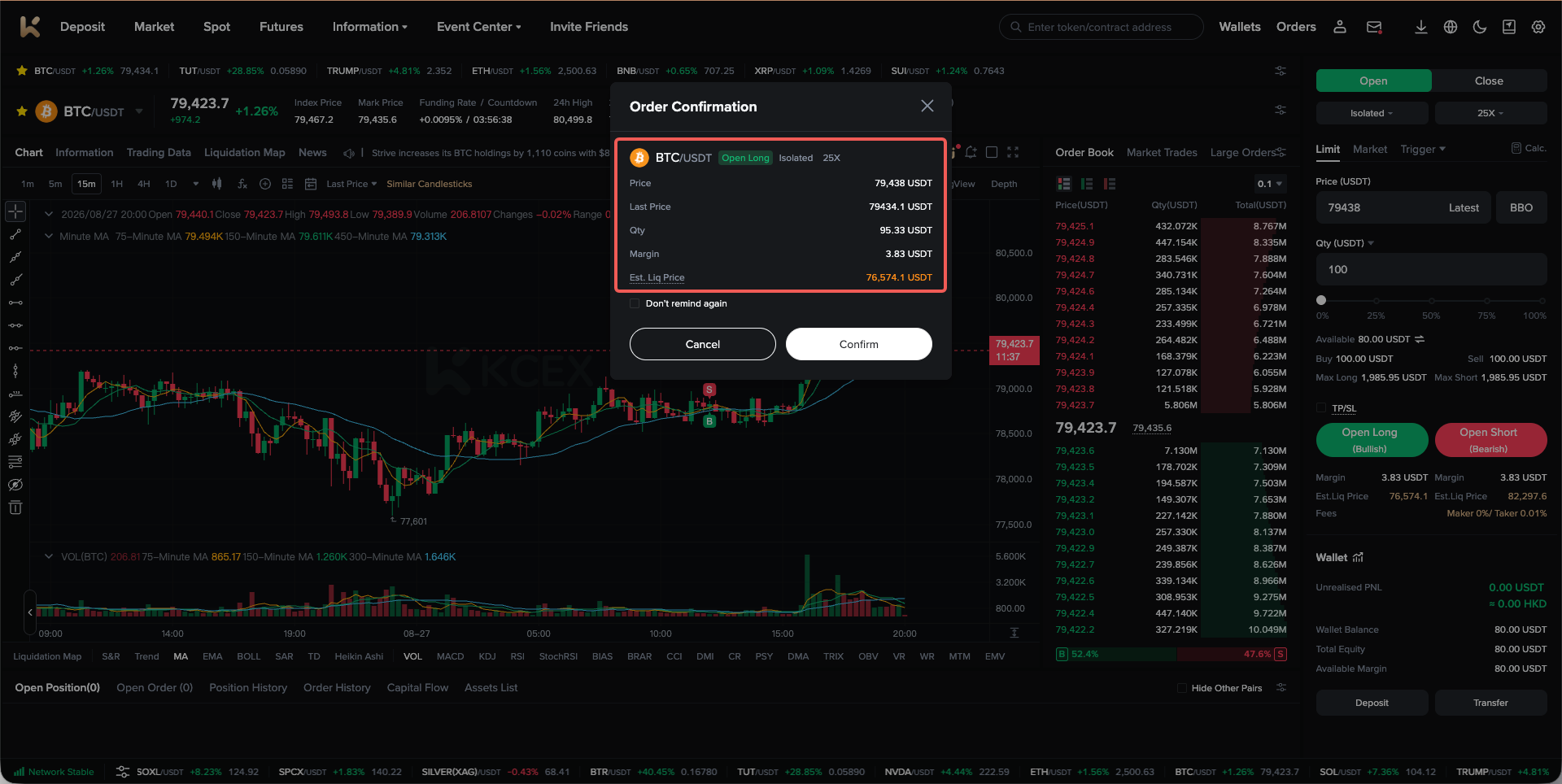
Enter your trading instructions in the order placement section, including the order type, such as a Market Order or Limit Order, price, and quantity. Then select the direction, either Open Long or Open Short, and submit the order.
7. View Current Positions
Once your order has been executed, the position is successfully opened. You can view it under Current Positions, including information such as the position quantity, position margin, average entry price, estimated liquidation price, and unrealized P&L.
You can also set take-profit and stop-loss conditions, increase the position, or close the position.
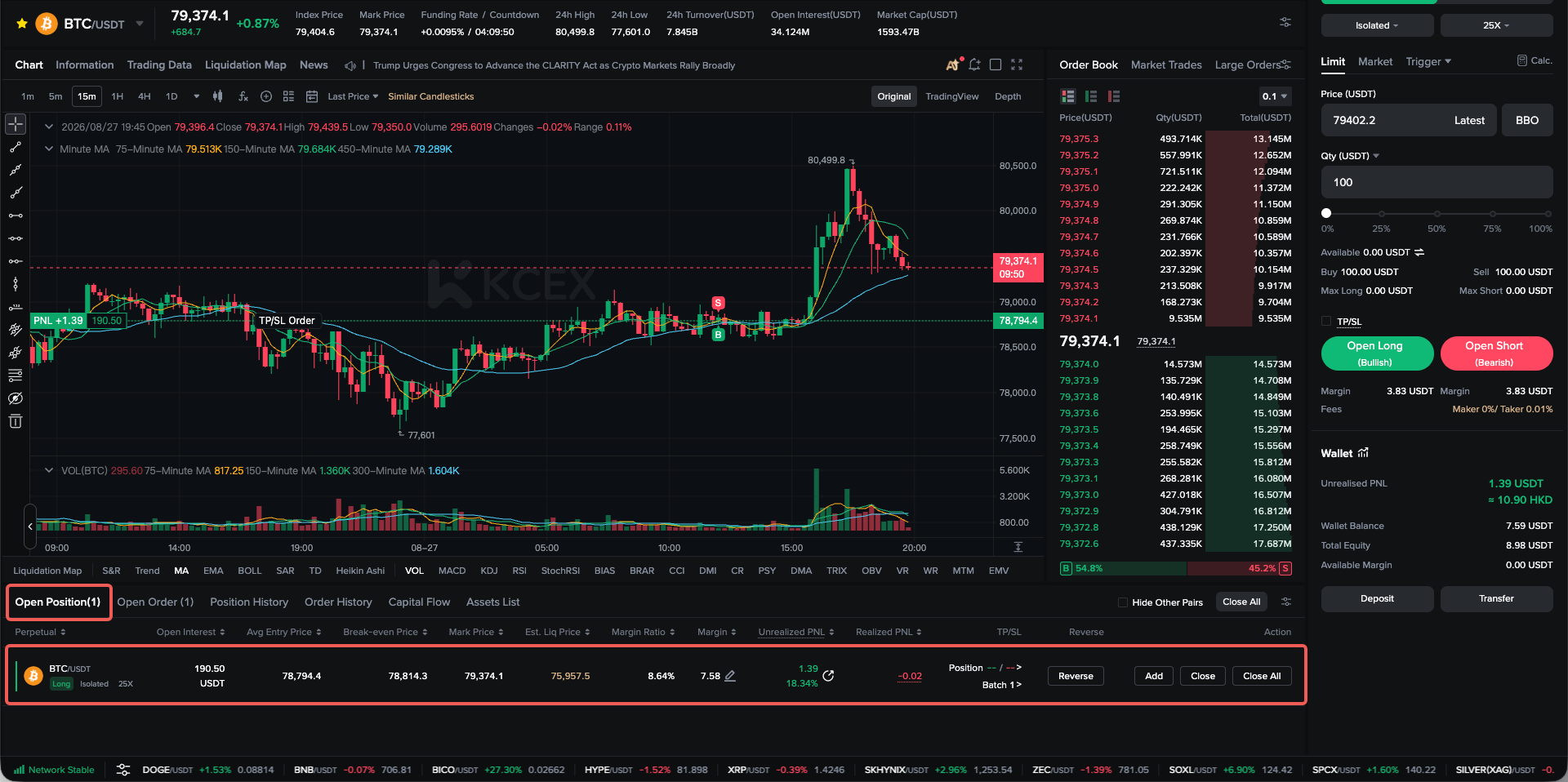
8. View Open Orders and Historical Order Records
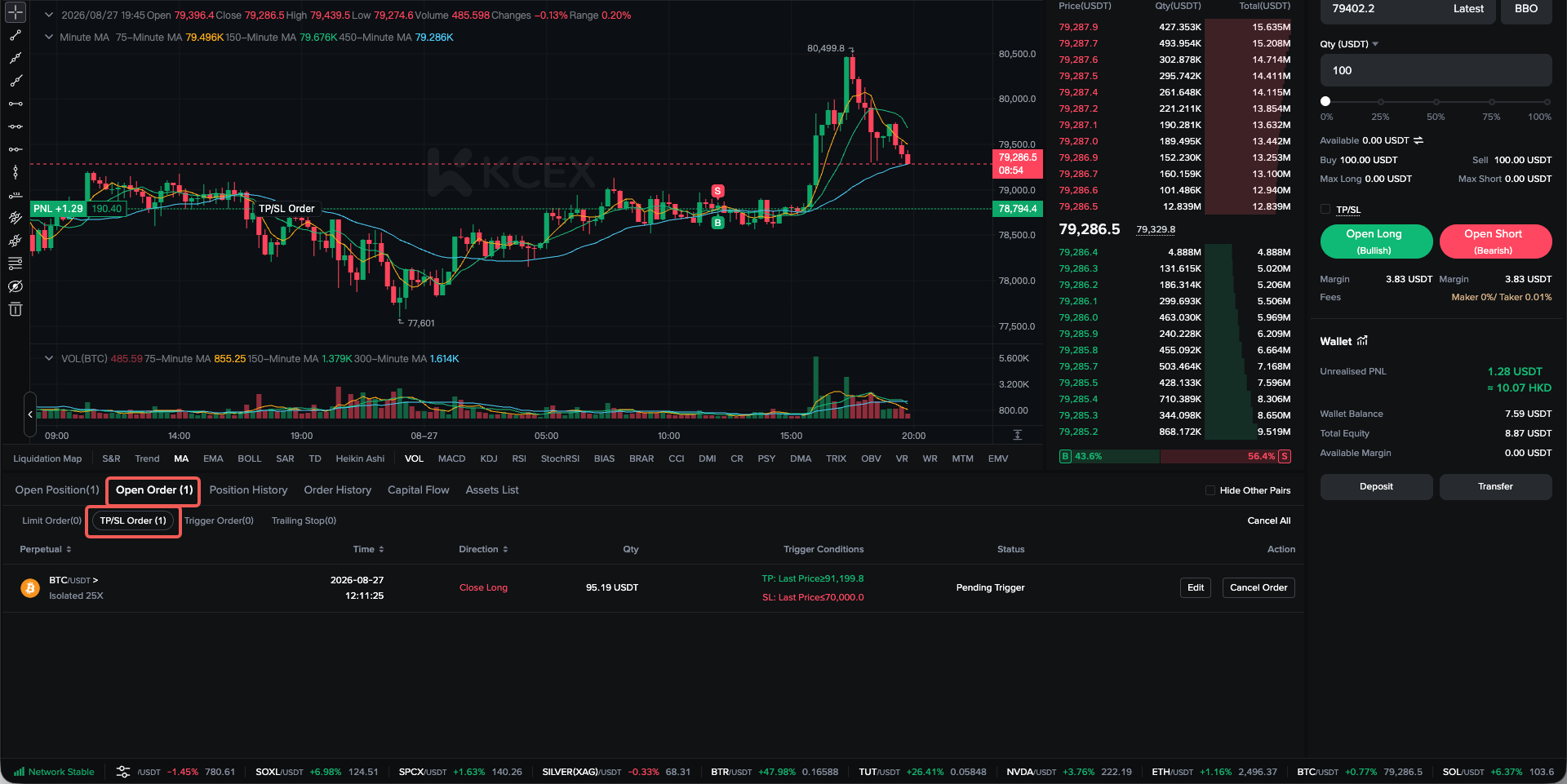
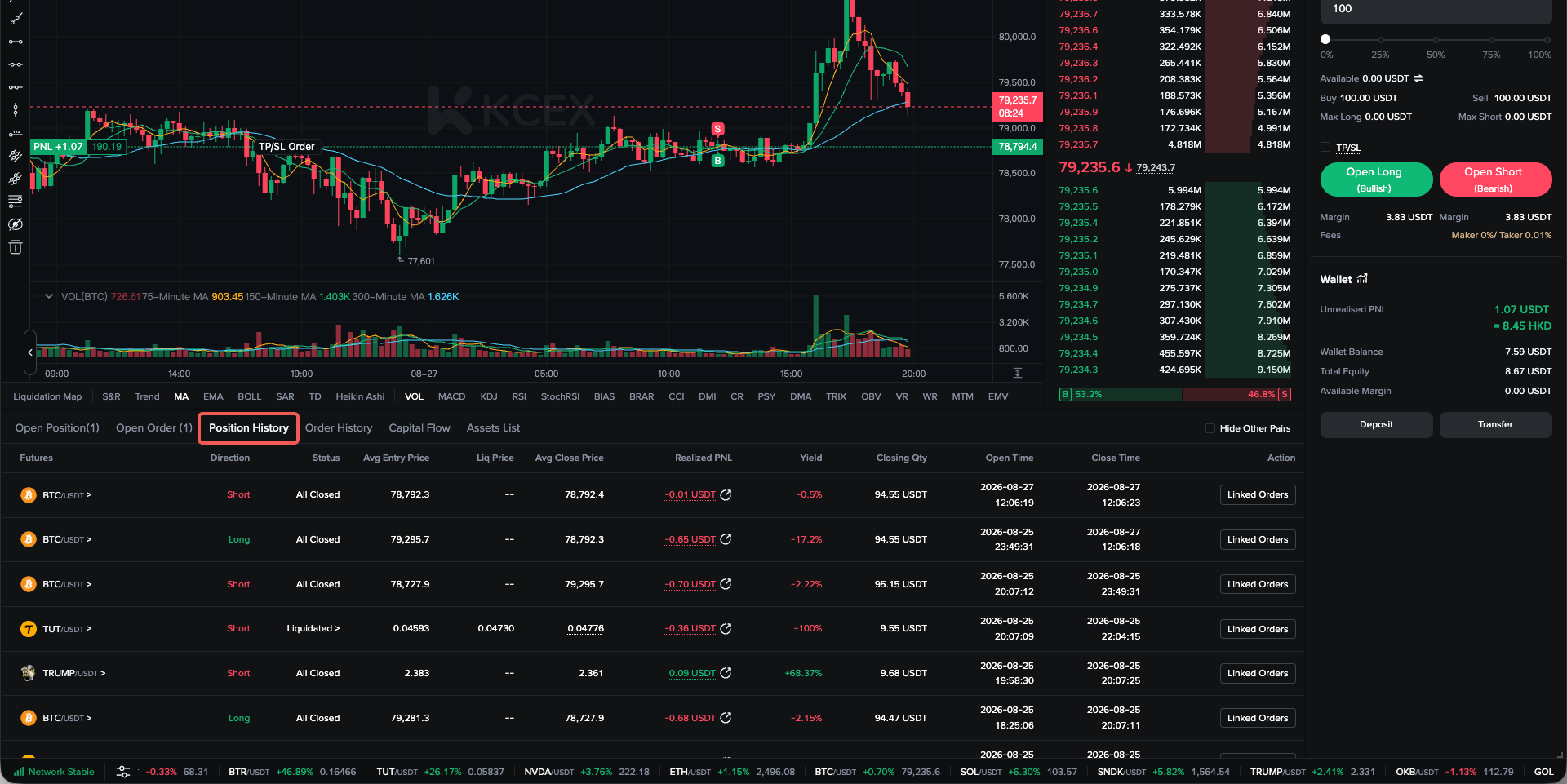
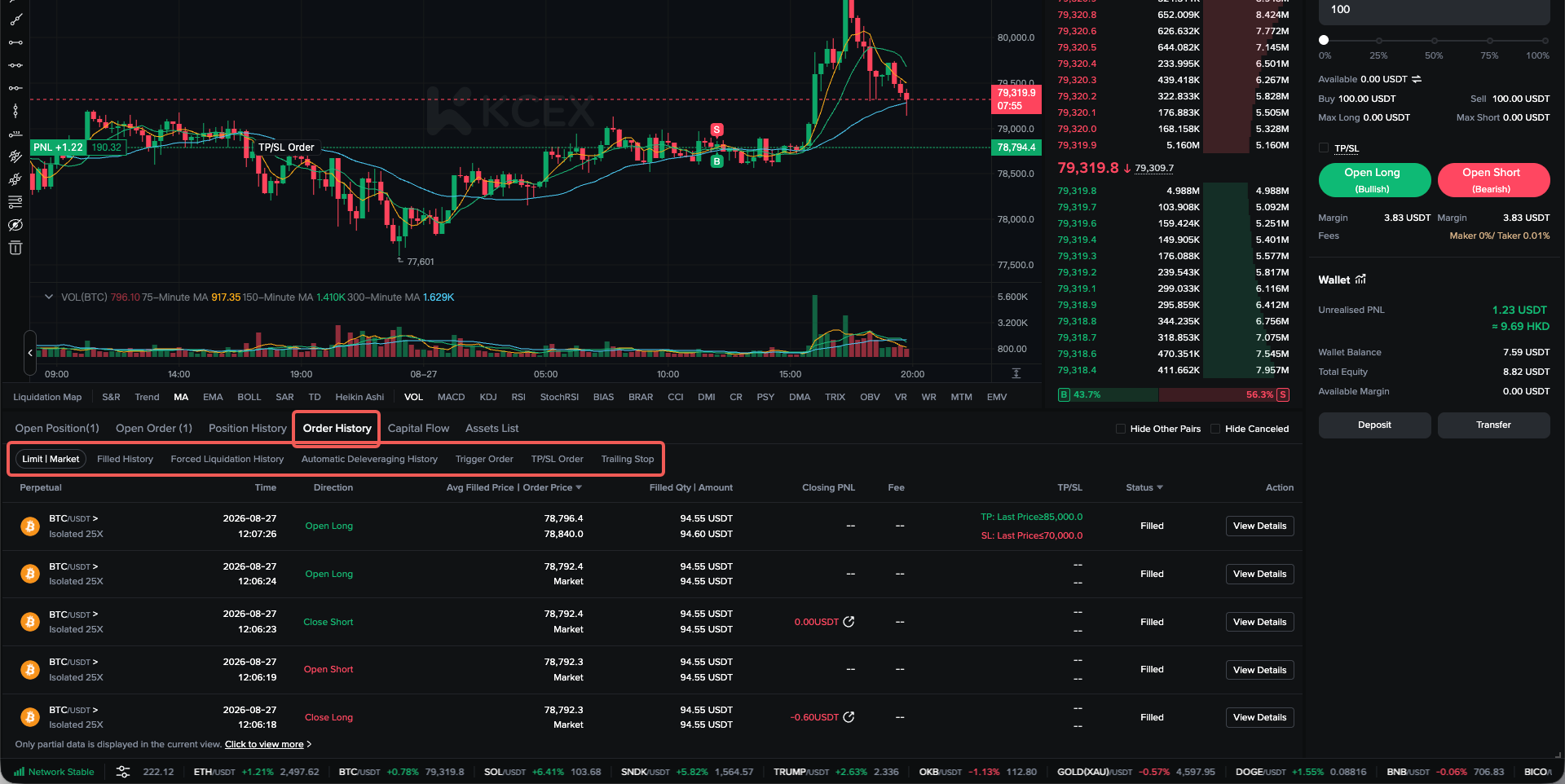
At the bottom of the futures trading page, you can switch to “Open Orders” to view all orders currently awaiting execution or triggering. You can switch to “Position History” to view records of all closed positions. You can also switch to “Order History” to view records of all canceled or executed historical orders.
KCEX remains committed to providing users with safe and efficient futures trading services. Thank you for your support!